
Microsoft Office
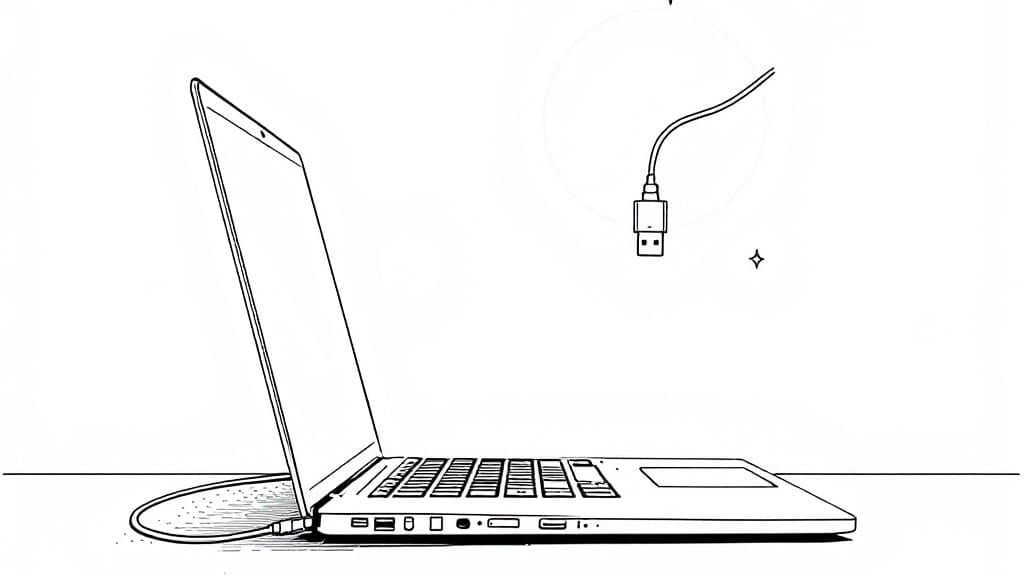
Most Surface devices include at least one USB port, but the placement and type can vary wildly between models. 🔥 For example, the Surface Pro 9 packs Thunderbolt 4 ports for lightning-fast data transfer, while older Surface tablets might only have a single USB-A port.
I've seen users struggle when connecting legacy peripherals—always double-check your device's manual or Microsoft's support site for exact specifications, as some models hide ports under removable panels.
Thunderbolt 4 ports (found on newer Surface Pros and Laptops) offer backward compatibility with USB devices, but they're designed primarily for high-speed data and display output. If you're working with older USB-A devices, you'll likely need an adapter—just be sure it supports your specific data transfer speeds.
I recommend keeping a USB-C hub handy for extra connectivity options, especially if you're traveling or working in multiple locations.
💡 In This Article
- USB Port Types Across Microsoft Surface Models
- Where to Find USB Ports on Surface Devices
USB port types across Microsoft Surface models
Microsoft Surface devices showcase a clear evolution in connectivity, with USB port types shifting from legacy USB-A to modern USB-C and Thunderbolt 4.
The Surface Pro 9, for instance, features two Thunderbolt 4 ports capable of transferring data at 40 Gbps—four times faster than standard USB 3.2 Gen 2 (10 Gbps).
This isn't just about speed; Thunderbolt 4 also supports daisy-chaining up to six 4K displays and charging at 100W, making it ideal for power users.
Meanwhile, older models like the Surface Pro 7 used USB-C but lacked Thunderbolt certification, limiting their bandwidth to 5 Gbps for USB 3.2 Gen 2.
The Surface Laptop 5 takes a different approach with a single USB-C port (USB 3.2 Gen 2) and a USB-A port, catering to users who still rely on older peripherals like external hard drives or printers.
What's fascinating is how Microsoft balances innovation with backward compatibility—even Thunderbolt 4 ports on newer devices maintain USB-A compatibility through adapters. However, these adapters often reduce transfer speeds to the slower USB standard, which is why I always recommend using native USB-C connections when possible.
For example, connecting a 1TB external SSD via Thunderbolt 4 will copy files in under 3 minutes, while USB-A might take 15 minutes or more.
Here's what you need to know about compatibility: Thunderbolt 4 ports support all USB standards (including USB 2.0), but not all USB-C ports are Thunderbolt. The key difference lies in the protocol—Thunderbolt adds PCIe lanes and DisplayPort support, enabling faster data transfer and multi-monitor setups.
For instance, a Surface Pro 9 can connect to a 4K monitor and charge simultaneously, while a USB-C-only device might struggle with both tasks at once.
This is why I recommend checking your device's specifications before purchasing accessories—some Surface tablets use USB-C for charging only, requiring separate ports for data transfer.
For peripherals like keyboards and docking stations, the differences become even more pronounced. A Surface Pro 9 with Thunderbolt 4 can connect to a full docking station with Ethernet, multiple displays, and USB hubs without latency.
In contrast, a Surface Laptop 4 with USB-A might need a separate hub just to add extra ports. The science here involves power delivery—Thunderbolt 4 can provide up to 100W of power, while standard USB-C often maxes out at 65W.
This means newer devices can charge faster and run power-hungry peripherals like external GPUs without throttling.
One common misconception is that all USB-C ports are identical. They're not—some Surface devices use USB-C for charging only, while others support data transfer.
For example, the Surface Go 3 has a single USB-C port that handles both charging and data, but it's limited to USB 3.2 Gen 1 (5 Gbps). This is why I always advise users to verify their specific model's capabilities before buying accessories.
A quick check on Microsoft's support site can save hours of frustration when trying to connect a high-speed SSD or external GPU.
Consider these key factors when choosing accessories:
- Speed: Thunderbolt 4 (40 Gbps) vs. USB 3.2 Gen 2 (10 Gbps)—a 4x difference in transfer speeds
- Compatibility: Thunderbolt 4 supports USB-A via adapters, but speeds drop to USB 2.0 (480 Mbps)
- Power Delivery: Thunderbolt 4 can charge devices up to 100W, while standard USB-C often maxes at 65W
- Peripherals: Docking stations with Thunderbolt 4 support multiple 4K displays and Ethernet simultaneously
What most people don't realize is how Thunderbolt 4's PCIe lanes enable direct connection to external GPUs, turning a Surface Pro into a mini workstation. This is why professionals in fields like video editing or 3D rendering prefer Thunderbolt-equipped devices—they can offload processing tasks to external hardware without bottlenecks.
For everyday users, however, the choice often comes down to convenience: USB-A might be simpler for legacy devices, but USB-C/Thunderbolt offers future-proofing. 🔥
Frequently asked questions
Which Surface models have Thunderbolt 4 ports?
Newer Surface devices like the Surface Pro 9, Surface Laptop 5, and Surface Pro 8 feature Thunderbolt 4 ports. These provide 40 Gbps speeds and support charging up to 100W. Older models (Surface Pro 7 and earlier) use standard USB-C without Thunderbolt certification, limiting speeds to 5 Gbps for USB 3.2 Gen 1. Always verify your model's specs on Microsoft's support site.
Can I use USB-A devices with a Surface that only has USB-C?
Yes, but you'll need a USB-C to USB-A adapter. These adapters work with all Surface USB-C ports, but speeds will drop to USB 2.0 (480 Mbps) if the adapter doesn't support USB 3.2. For Thunderbolt 4 ports, adapters maintain backward compatibility but may reduce performance. I recommend the Anker USB-C hub for extra ports and faster transfers.
Why does my Surface Go 3 only have one USB-C port?
The Surface Go 3 uses a single USB-C port for both charging and data transfer, but it's limited to USB 3.2 Gen 1 speeds (5 Gbps). This design prioritizes portability over speed. To add more connectivity, use a USB-C hub like the Belkin Dock, which adds USB-A, HDMI, and Ethernet ports. The trade-off is intentional—Microsoft optimized the Go series for lightweight use.
How do I know if my Surface's USB port is damaged?
Check for these signs: no power delivery when charging, slow data transfer (e.g., files taking hours to copy), or flickering lights in the port. Test with a different cable and device to rule out hardware issues. If the port works intermittently, try cleaning it gently with compressed air or a soft brush. Persistent problems may require a repair—contact Microsoft Support or visit an authorized service center.
Are Surface USB ports compatible with external GPUs?
Only devices with Thunderbolt 4 ports (like the Surface Pro 9) support external GPUs. These ports provide the necessary PCIe lanes and power delivery for high-performance graphics cards. Standard USB-C ports lack this capability. For creative professionals, Thunderbolt 4 enables seamless integration with eGPUs like the Razer Core X, turning your Surface into a powerful workstation.
Final thoughts
So, does the Microsoft Surface have a USB port? Absolutely! Whether you're using a Surface Pro, Surface Laptop, or Surface Book, Microsoft ensures you have the connectivity you need—just check your model for the exact type (USB-A, USB-C, or Thunderbolt).
From charging to peripherals, these ports keep you seamlessly connected. No worries about compatibility—Microsoft’s thoughtful design means you’ll find the right port for your workflow. Now, go ahead and plug in with confidence! 🚀