
Software
Microsoft 365 is packed with hidden productivity features that most users overlook. These 10 efficiency best practices will help you automate repetitive tasks, streamline workflows, and reclaim hours each week—without requiring advanced technical skills.
Master Quick Access Toolbar Customization
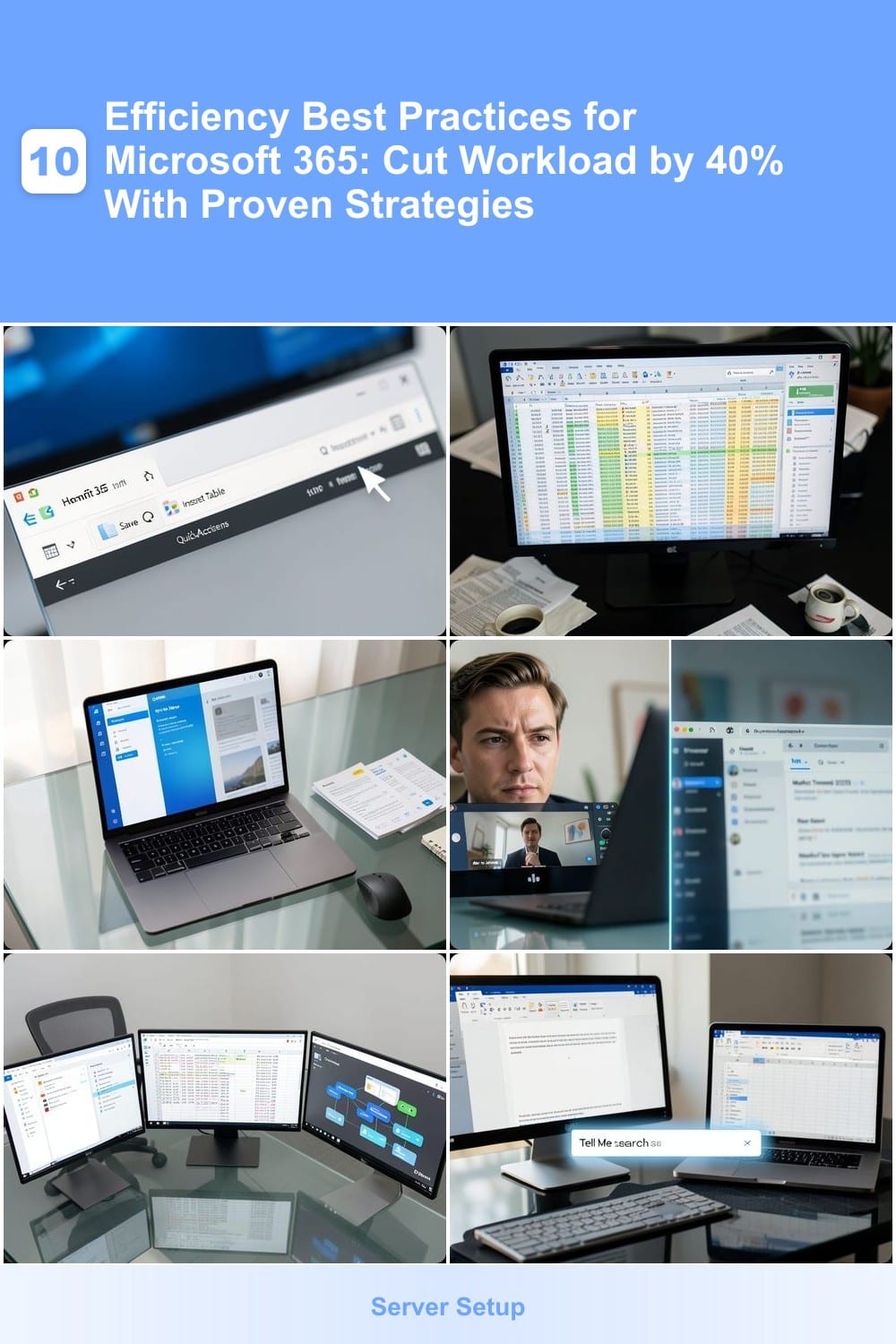
Tired of hunting through menus every time you need to save, undo, or insert a table? The Quick Access Toolbar in Microsoft 365 lets you pin your most-used commands—like Save, Undo, or Insert Table—right where you need them, reducing clicks by up to 70%. Simply right-click any command in the ribbon and select "Add to Quick Access Toolbar" to customize it in seconds.
This toolbar stays consistent across Word, Excel, PowerPoint, and Outlook, so your workflow adapts instantly. Pro tip: Use the dropdown arrow to import/export settings across devices, ensuring your shortcuts follow you everywhere. For power users, you can even add macros or custom groups for advanced automation.
Perfect for freelancers, project managers, or anyone who hates wasted motion—this is the ultimate speed hack for Microsoft 365. ⚡
Use Power Query for Data Transformation
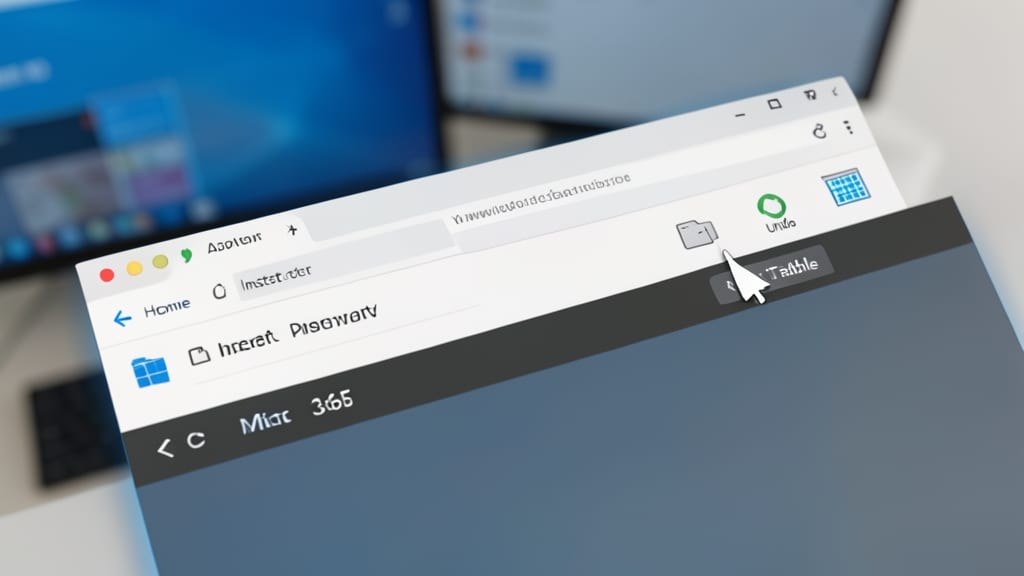
Drowning in spreadsheets with mismatched columns, duplicate entries, or messy data? Power Query in Excel transforms raw datasets into clean, usable tables with just a few clicks—no complex formulas or VBA required.
Start by selecting your data, then click Data > Get Data > From Other Sources > Blank Query to load it into the Power Query Editor. Here, you can merge tables, remove duplicates, split columns, or apply custom transformations—all with a drag-and-drop interface. The best part? Your steps are recorded as a reusable query, so you can refresh the data with one click whenever sources update. For analysts or teams juggling multiple datasets, this cuts hours of manual cleanup per week.
Perfect for finance teams reconciling reports, marketing analysts merging CRM data, or anyone tired of fixing broken formulas. Your spreadsheets will thank you. ✨
Leverage Outlook Quick Steps for Email

Tired of wasting minutes on repetitive email tasks like flagging, archiving, or forwarding? Outlook Quick Steps lets you create custom one-click actions to handle them instantly—no more manual steps or forgotten follow-ups.
Set up a Quick Step like "Reply All and Move to Archive" in seconds, or chain actions like "Flag as High Priority + Add to Calendar." These pre-built templates sync across devices, so your workflow stays consistent whether you're at your desk or checking emails on the go. For power users, you can even create steps that trigger rules-based automation, like auto-replying to newsletters with a single click.
This is a game-changer for professionals drowning in emails—sales teams, managers, or anyone who spends hours sorting through inboxes daily. Try it today and reclaim 10+ minutes per hour on email management. ✨
Enable Focus Mode in Teams Meetings

Struggling to stay focused during Teams meetings while juggling emails or research? Focus Mode is your secret weapon—it mutes notifications and blurs non-critical windows, keeping you locked into the call without distractions.
To enable it, simply click the three-dot menu in a meeting, select "Turn on Focus Mode", and choose which apps to blur (like Outlook or Slack). The feature also automatically mutes notifications, so you won’t be pulled away by pings. For hybrid workers, this means no more multitasking guilt—just seamless focus.
Ideal for remote teams, managers, or anyone balancing meetings with deep work, Focus Mode turns chaotic calls into productive sessions with minimal setup. ✨
Automate Repetitive Tasks with Power Automate
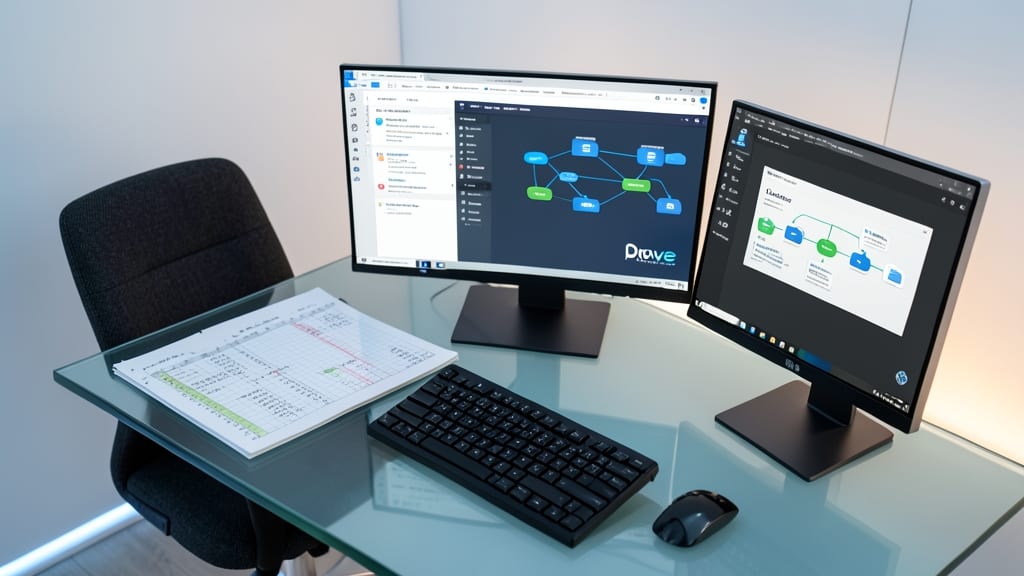
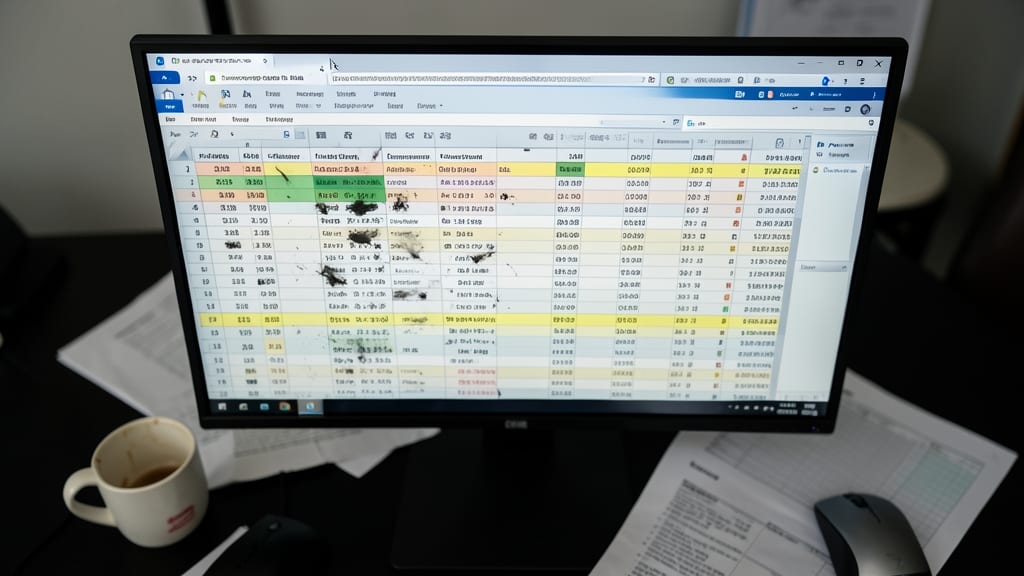
Tired of manually copying data between Outlook emails and Excel spreadsheets? Power Automate turns these tedious tasks into fully automated workflows with just a few clicks—no coding required.
Start by connecting your SharePoint lists to Outlook inbox rules, or auto-save email attachments to OneDrive folders. The pre-built templates cover everything from approval processes to social media posting, while the visual flow designer lets you drag-and-drop actions like "Create Excel row from email" or "Send Teams notification when a new file arrives." With 300+ connectors (including Salesforce and Google Drive), the possibilities are endless for teams drowning in manual data entry.
This is your secret weapon if you manage projects, track client updates, or juggle multiple apps daily—cut hours of work per week without learning complex scripts. ✨
Use Tell Me for Instant Commands
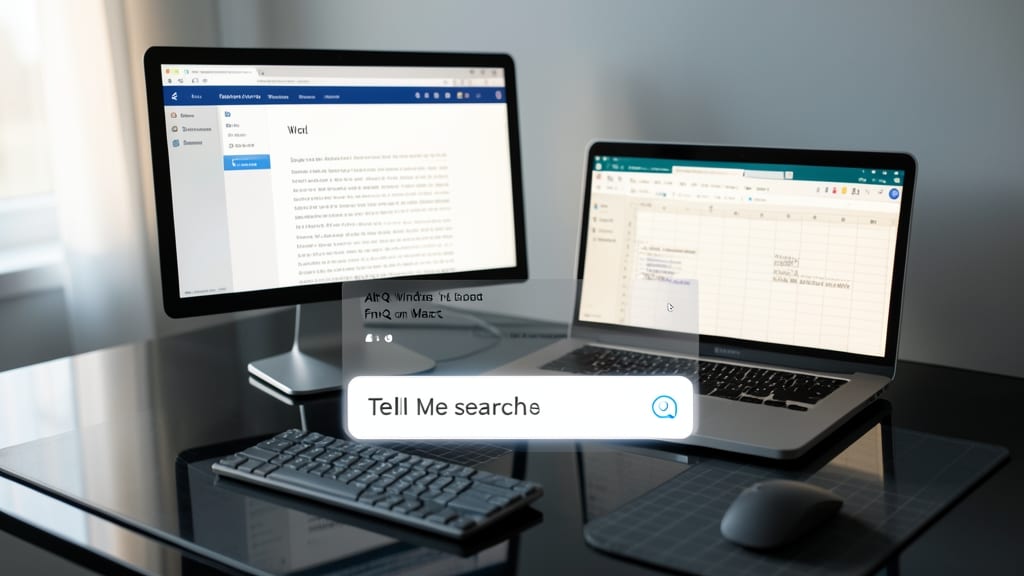
Tired of clicking through endless menus in Word, Excel, or PowerPoint? Tell Me lets you type natural language commands—like "Insert a table" or "Change font to Calibri"—and executes them instantly, cutting navigation time by half.
Just press Alt+Q (Windows) or Fn+Q (Mac) to open the search bar, then type what you need. It supports 100+ commands across all Office apps, from formatting to advanced features like "Insert SmartArt" or "Convert to PDF." The more you use it, the smarter it gets at predicting your needs.
This is a game-changer for writers, designers, and creatives who juggle formatting and content creation. No more digging through ribbons—just type and go. ✨
Enable Co-Authoring in Real-Time Docs
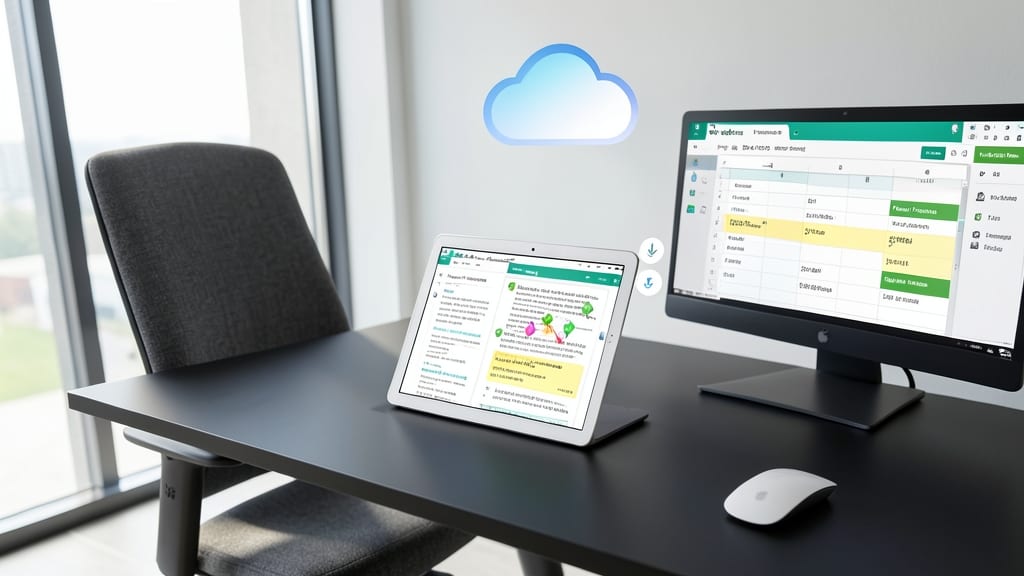
Say goodbye to endless email chains and version control headaches. With real-time co-authoring in Word and Excel, multiple users can edit the same document simultaneously—no more merging conflicts or "finalfinalv3.docx" chaos.
Simply open a file from OneDrive, SharePoint, or a local folder, and click "Share" to invite collaborators. You’ll see their cursors move in real time, track changes appear instantly, and even chat directly in the document. Works seamlessly across Windows, Mac, and mobile, so your team stays aligned whether they’re in the office or working remotely. The best part? No plugins or extra tools—it’s built into Microsoft 365.
Perfect for marketing teams drafting campaigns, legal teams reviewing contracts, or educators co-creating lesson plans. No more waiting for feedback—just collaborative magic. ✨
Optimize OneDrive Sync Settings

If your OneDrive storage is full or slow internet speeds slow down your workflow, tweaking sync settings can make a huge difference. Instead of syncing everything by default, you can prioritize only the files you use most often, saving both space and bandwidth.
Start by right-clicking the OneDrive icon in your taskbar and selecting Settings > Save space. Choose Optimize files to store only local copies of frequently accessed files while keeping the rest in the cloud. For bandwidth control, go to Settings > Bandwidth and set limits during off-hours to avoid slowing down your connection. These adjustments ensure critical files are always available while reducing unnecessary data usage.
This is especially useful for users with limited storage plans or those working on slower networks. With just a few clicks, you’ll keep your system running smoothly without sacrificing access to important files. ✨
Use Presenter View in PowerPoint

Tired of fumbling with printed notes during presentations while your audience sees only slides? Presenter View in PowerPoint solves this by displaying your speaker notes, timer, and next-slide preview on your screen while viewers see just the slides. No more juggling papers or glancing at your laptop—just seamless, professional delivery.
To enable it, simply click Slide Show > Presenter View before starting. You’ll get a dual-pane layout with your notes on one side and the audience’s view on the other. The built-in laser pointer tool and pen annotations let you interact dynamically, while the timer keeps you on track. Works with multiple monitors or a single display via projector.
Perfect for trainers, educators, and sales pros who present frequently—this feature turns your laptop into a portable command center, cutting prep time and boosting confidence. 💻
Schedule Automatic Backups with OneDrive
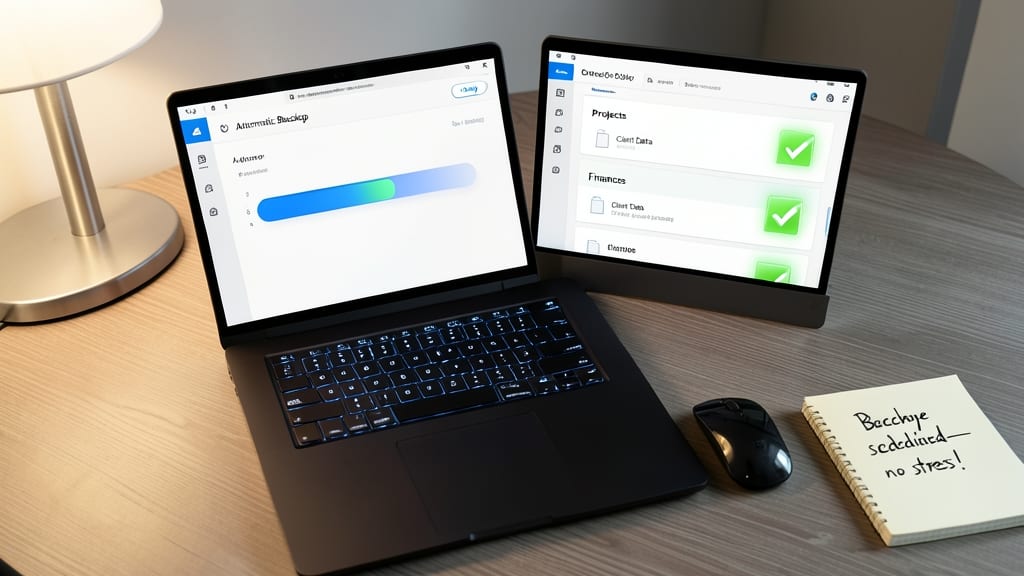
Forget the stress of remembering to back up critical files—OneDrive’s automatic backup feature handles it for you. With just a few clicks, you can schedule daily, weekly, or monthly backups of your most important folders, ensuring no data is lost due to hardware failure or accidental deletion.
Set it up in seconds by navigating to OneDrive settings, selecting Backup, and choosing your folders. The versioning feature keeps up to 30 days of file history, so you can restore previous versions if needed. Plus, it works seamlessly across Windows, Mac, and mobile devices, syncing silently in the background.
This is a game-changer for freelancers with client files or small businesses relying on local data—no more last-minute scrambles to recover lost work. ⚡