Hardware
Did you know your keyboard’s F1-F12 keys unlock powerful shortcuts that can save you hours of work? These often-overlooked function keys control everything from system settings to browser actions—here’s how to master them like a pro.
F1 Key Opens Help and Support
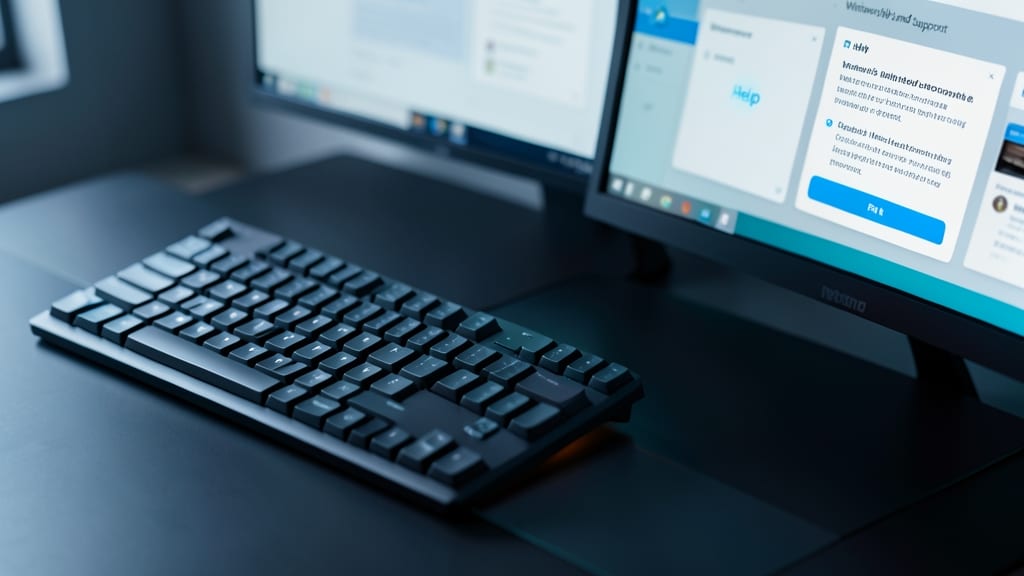
Stuck troubleshooting a Windows error or curious about a new feature? The F1 key is your instant lifeline—press it once to open the Windows Help and Support menu, where you’ll find step-by-step guides, troubleshooting tools, and official Microsoft documentation—all without leaving your current screen.
This shortcut works across Windows 7 through Windows 11, delivering context-sensitive help for everything from BSOD errors to driver issues. Need to reset a forgotten password or configure a network setting? Instead of searching online, let F1 pull up the exact solution in seconds. It even triggers help menus in many third-party applications like Adobe Photoshop or Microsoft Office when combined with Ctrl+Shift+F1.
Perfect for IT support professionals, students learning Windows, or anyone who hates digging through forums—this is the ultimate zero-config shortcut for clarity and speed. ⚡
F2 Key Renames Files and Folders
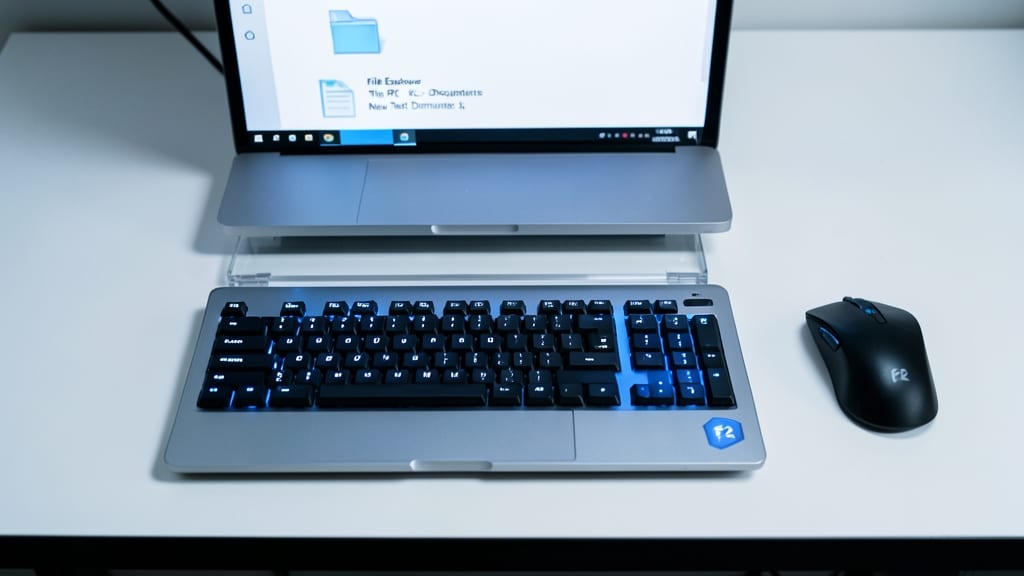
Tired of the extra clicks it takes to rename files or folders? The F2 key is your secret weapon for instant renaming in Windows Explorer or File Manager—no right-click menu required. Simply select your file, press F2, type your new name, and hit Enter. It’s faster than clicking twice, and it works across all Windows versions, from Windows 7 to the latest Windows 11.
This shortcut shines for developers organizing code files, office workers batch-editing documents, or anyone who spends hours managing digital clutter. It even works in Command Prompt for quick file renames without leaving your terminal. The best part? It’s built into Windows by default—no extra software or setup needed.
Perfect for power users who want to eliminate mouse dependency and streamline workflows, F2 is one of those underrated keys that makes daily tasks feel effortless. Give it a try next time you’re organizing files! ⚡
F3 Key Launches Search Everywhere
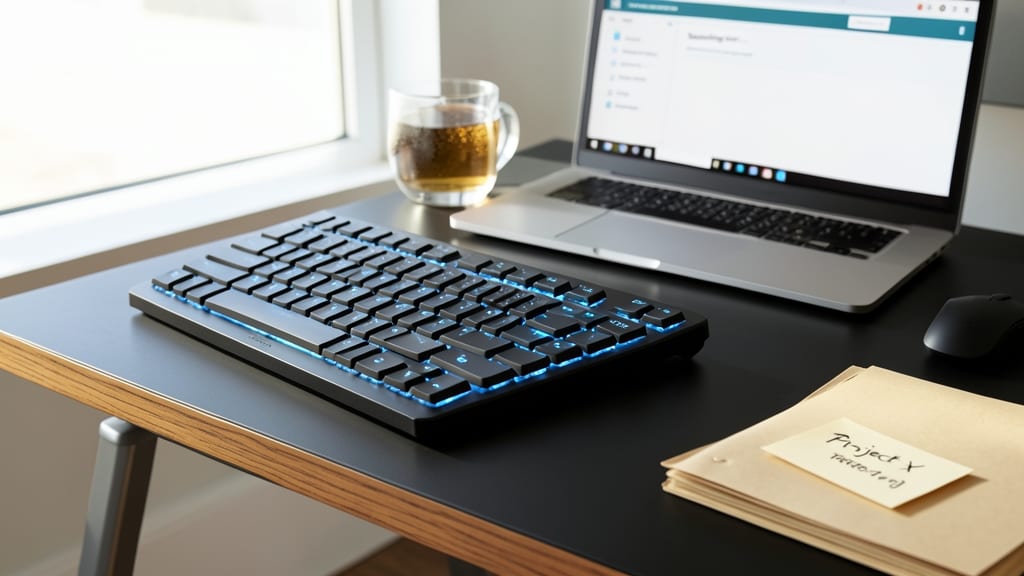
Tired of clicking through menus to search your files or browse the web? The F3 key is your new best friend—it instantly opens the search function in Windows Explorer, your browser’s address bar, and even the Windows Search bar with a single press.
No mouse required: just press F3, type your query, and hit Enter to jump straight to results. This works across Chrome, Edge, Firefox, and even Command Prompt (for quick file searches). It’s especially useful for researchers, developers, or anyone drowning in digital clutter—no more digging through folders or tabs.
Power users and productivity seekers will love this zero-config shortcut, while casual users can finally ditch the mouse for faster searches. Try it today and never waste time navigating again! ✨
F4 Key Cycles Through Address Bar History
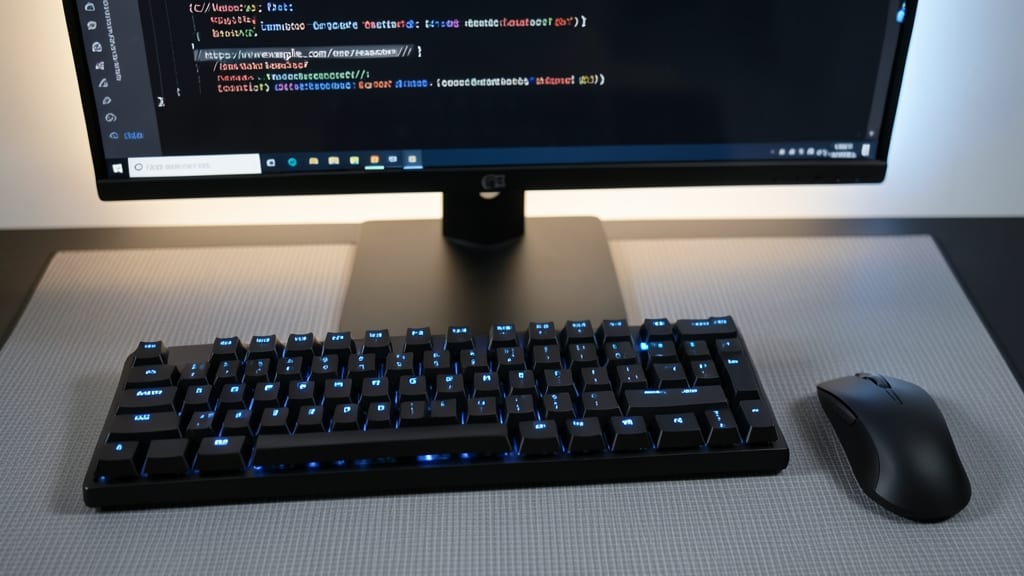
Tired of retyping long URLs or commands? The F4 key is your secret weapon for instant recall—whether you're browsing the web or working in Command Prompt.
In Windows browsers, pressing F4 cycles backward through your address bar history, pulling up past URLs with a single keystroke. Meanwhile, in Command Prompt, it repeats your last command—perfect for IT pros running scripts or sysadmins troubleshooting servers. The best part? It works in most applications where history tracking is enabled, from file paths in Windows Explorer to search queries.
This shortcut shines for sysadmins, developers, and power users who juggle multiple tabs or run repetitive commands. Next time you're typing a long path or URL, let F4 do the heavy lifting for you. ⚡
F5 Key Refreshes Web Pages Instantly
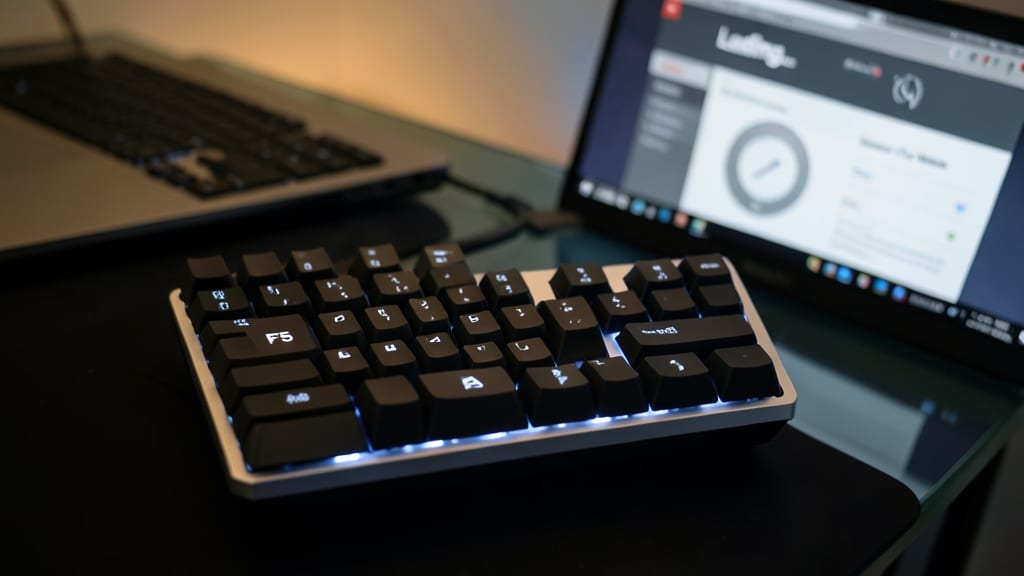
Tired of waiting for stubborn web pages to load? The F5 key is your instant refresh button—universal across browsers, email clients, and even some games. It’s the one shortcut everyone knows but doesn’t always use efficiently.
Pressing F5 reloads the current page, bypassing the need to click the refresh icon or use Ctrl+R. It also works in Gmail, Outlook, and Discord to force-reload content, and in games like Fortnite or Valorant to reset UI glitches. For developers, F5 is the default key to refresh browser DevTools without losing debug sessions.
This is the go-to key for anyone who spends time online—whether you're troubleshooting a frozen page, checking for updates, or just want to clear cached data. Mastering F5 keeps your workflow smooth and frustration-free. ✨
F6 Key Moves Cursor in Address Bars
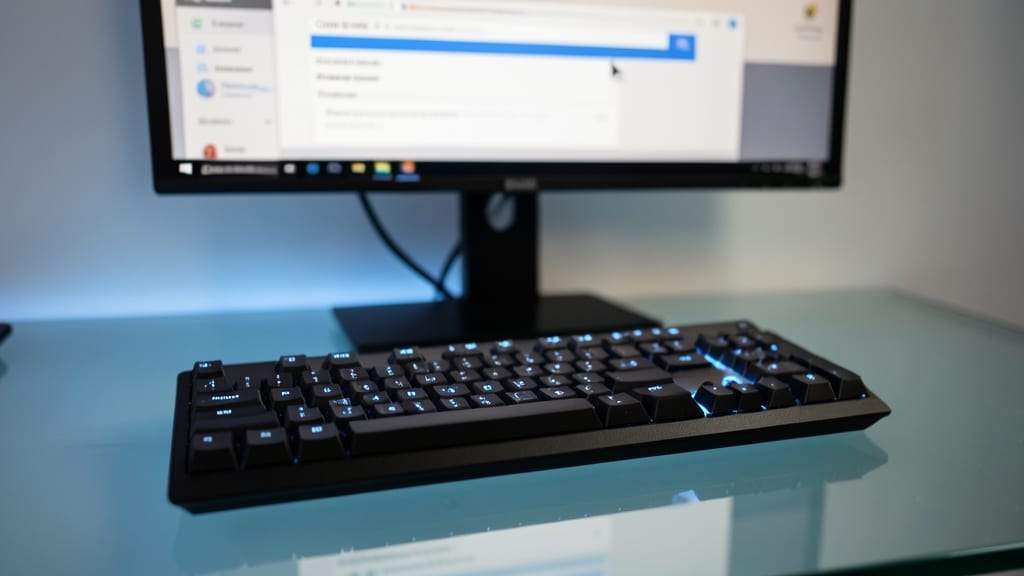
Tired of reaching for your mouse every time you need to edit a URL or search box? The F6 key is your secret weapon for seamless navigation—it instantly moves the cursor to address bars, search fields, and even form inputs across most applications.
Press F6 once to jump between elements (like browser tabs, search boxes, and buttons), and hold it down to cycle through them sequentially. This works in Chrome, Firefox, Edge, and even some desktop apps, making it ideal for power users who prefer keyboard-only workflows. No more hand movement—just pure efficiency.
Perfect for data entry specialists, developers debugging code, or anyone who spends hours typing—this shortcut turns your keyboard into a productivity powerhouse. ⚡
F7 Key Spells Check in Microsoft Office
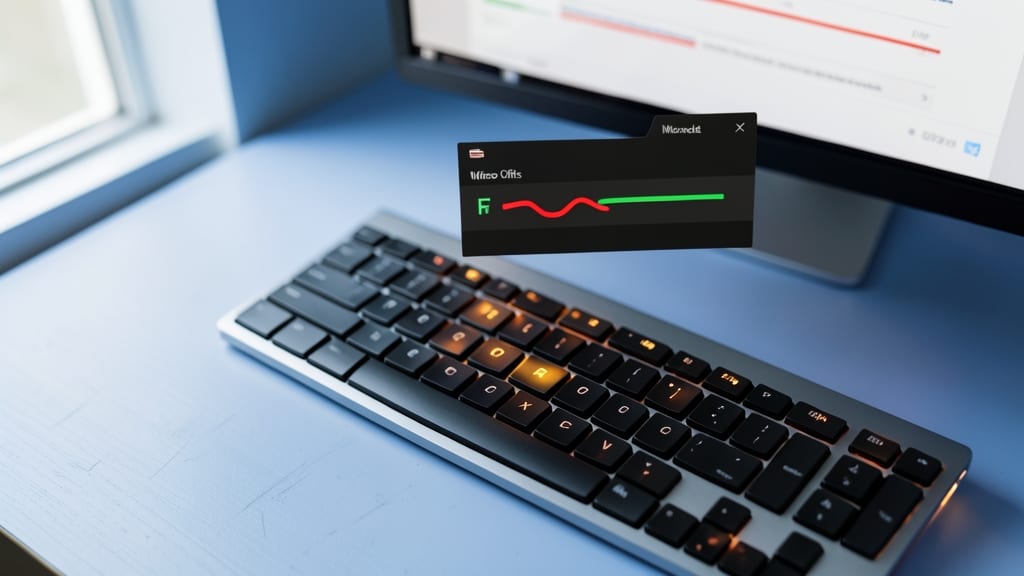
Tired of hunting through menus to toggle spellcheck in Microsoft Office? The F7 key is your secret weapon—with a single press, you can instantly enable or disable spellcheck in Word, Excel, or Outlook, saving precious seconds (or minutes) during long editing sessions.
This shortcut works across all Microsoft Office 365 and 2019/2016 versions, making it a universal tool for writers, students, and professionals. Press F7 to run spellcheck, then press it again to stop mid-check or disable it entirely—no more digging through the Review tab every time. It’s especially useful when you’re reviewing a document for flow and don’t want grammar suggestions interrupting your creative process.
Perfect for freelance writers, legal professionals, or anyone who spends hours typing, this shortcut keeps your workflow smooth and distraction-free. ⚡
F11 Key Enters Full-Screen Mode
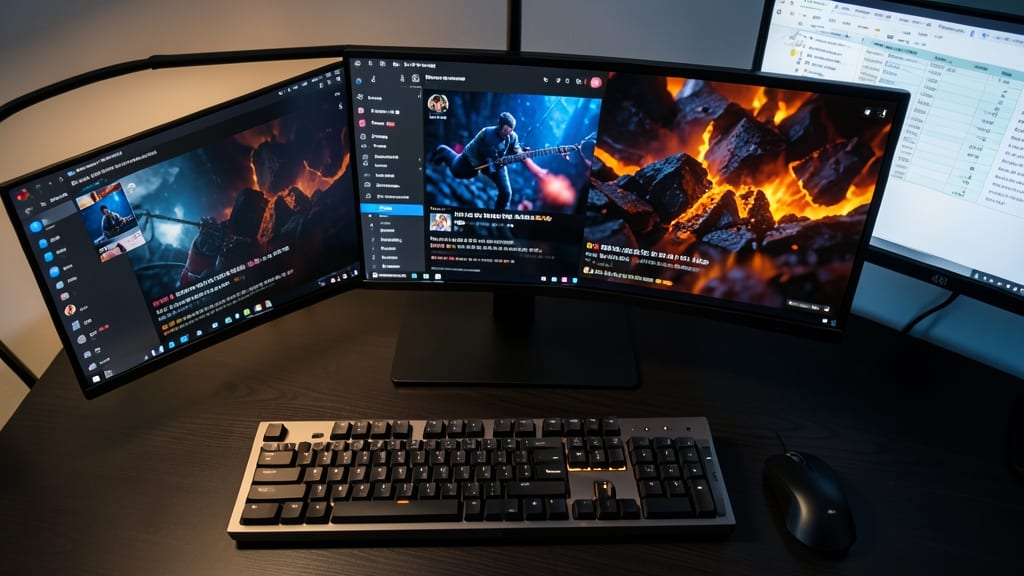
Need more screen real estate? The F11 key is your one-tap solution to toggle full-screen mode in browsers, videos, or presentations—no mouse required. Whether you're watching a movie, editing a spreadsheet, or delivering a lecture, this shortcut instantly maximizes your display for an immersive experience.
Works universally across Chrome, Firefox, Edge, and even media players like VLC or YouTube. Press F11 once to enter full-screen, and press it again to exit—simple as that. Gamers love it for eliminating distractions during intense matches, while students use it to expand notes or slides without clutter. The best part? It’s zero-configuration and works out of the box on Windows, macOS, and Linux.
Perfect for anyone who spends hours staring at a screen—whether you're a content creator, gamer, or remote worker, this key saves time and reduces hand fatigue. ⚡
F12 Key Opens Developer Tools
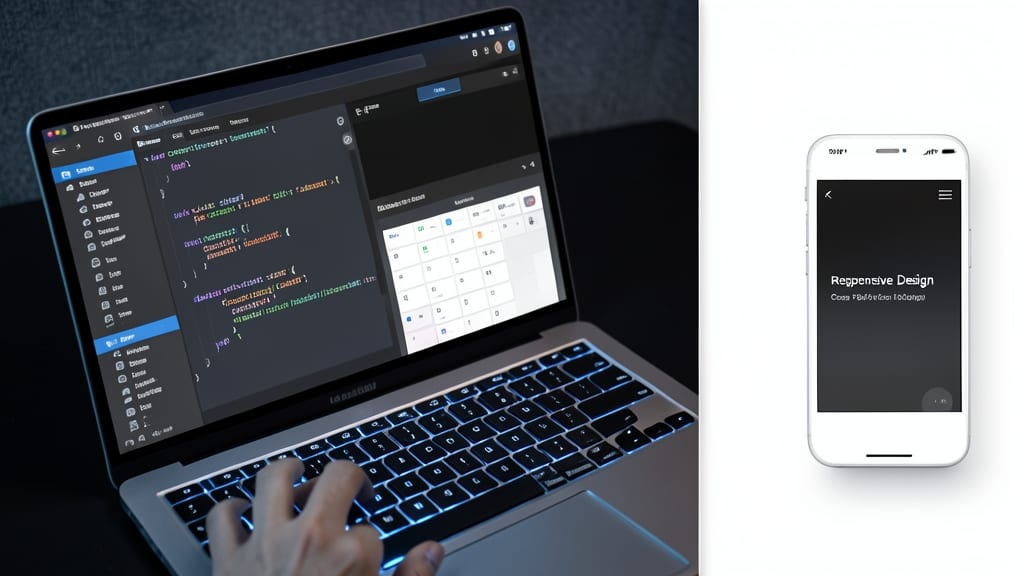
For web developers, the F12 key is a game-changer—it instantly opens browser DevTools, eliminating the need to navigate through menus or remember complex shortcuts like Ctrl+Shift+I.
With DevTools open, you can debug JavaScript errors, inspect HTML/CSS elements, and test responsive designs in real-time. The Elements panel lets you tweak styles live, while the Console helps troubleshoot runtime issues without leaving your workflow. Works seamlessly in Chrome, Edge, Firefox, and Safari.
This shortcut is perfect for front-end developers, QA testers, and anyone who spends hours debugging code—saving precious time and mental energy. ⚡
F10 Key Activates Menu Bars
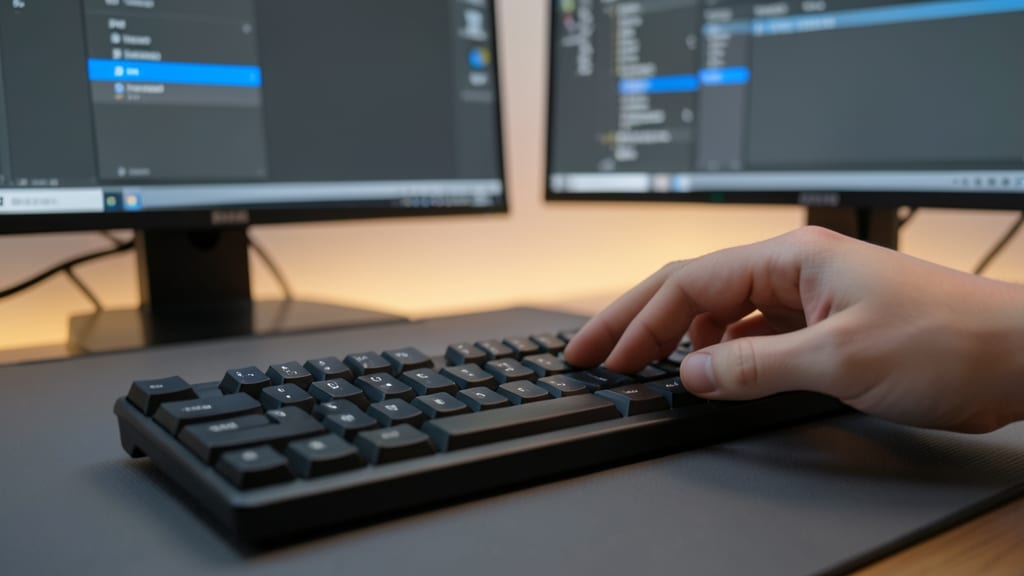
Tired of reaching for your mouse every time you need to access dropdown menus in Photoshop or AutoCAD? The F10 key is your new best friend—it instantly activates the menu bar in most Windows applications, letting you navigate with just your keyboard.
Pressing F10 highlights the top-level menu (like File, Edit, or Layer), and you can then use the arrow keys to select options. This shortcut works in Adobe Creative Suite, Microsoft Office, and even web browsers (like Chrome or Firefox) when combined with Alt. For users with motor impairments or those who prefer touch-typing, this eliminates the need for mouse clicks entirely.
Designers, architects, and power users will appreciate how F10 + Alt lets them access browser menus without lifting their hands—perfect for multitasking between apps. Give it a try in your favorite software and watch your workflow speed up! ✨