
PowerPoint
Standing out in high school requires more than just good grades—it’s about showcasing creativity and technical skills. These 10 Microsoft Office projects will help students build impressive portfolios while mastering essential tools like PowerPoint, Excel, and Word, all designed to impress teachers and peers alike.
Interactive Classroom Presentation on Climate Change
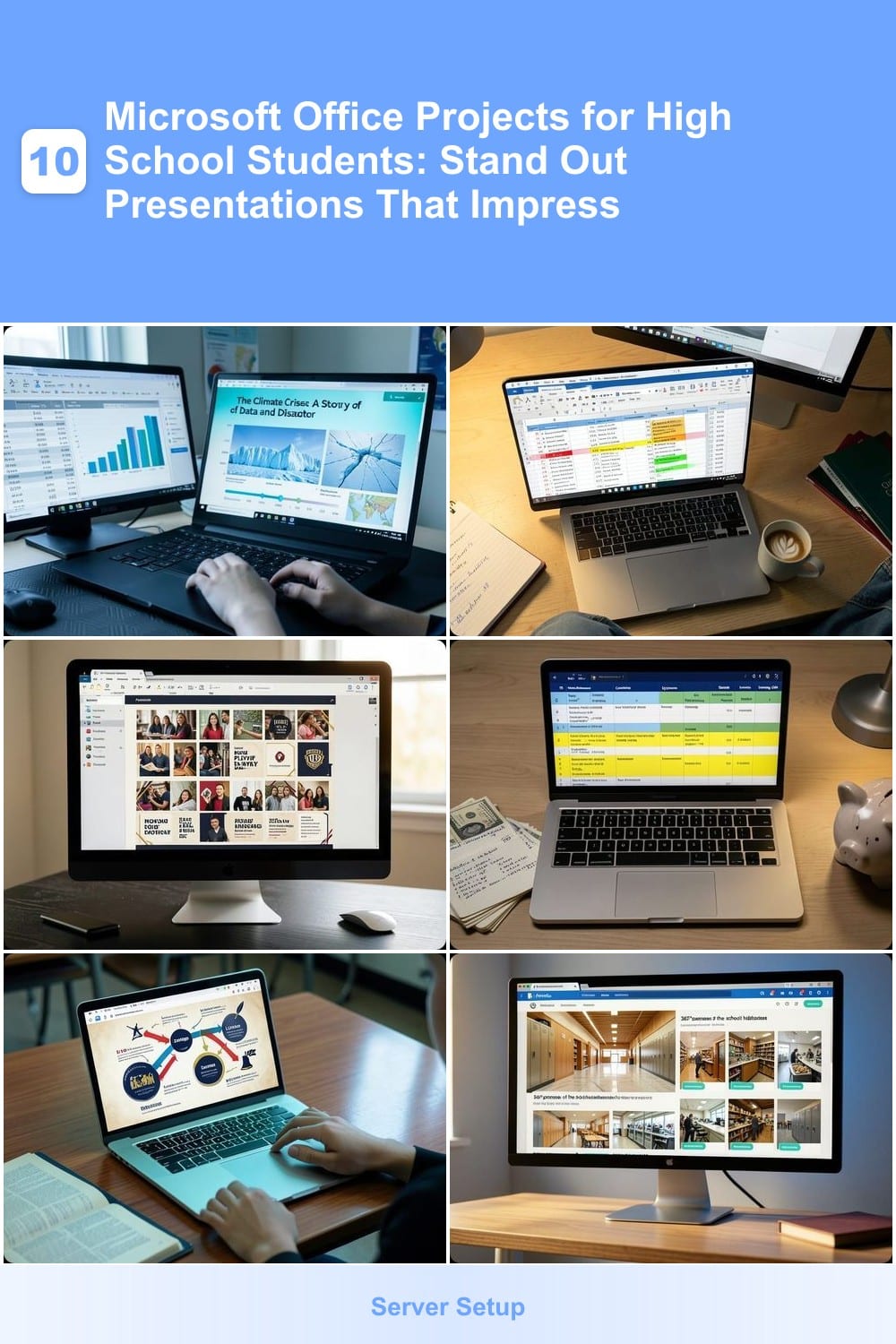
Turn a dry science topic into a gripping story with an interactive PowerPoint presentation that blends animations, embedded videos, and clickable hyperlinks. This project transforms climate data into a visually compelling narrative—perfect for science fairs or class discussions where engagement matters as much as facts.
Start with animated infographics (using PowerPoint’s Morph transitions) to show rising temperatures or melting ice caps, then embed short documentary clips (like NASA’s climate reports) to add authenticity. Hyperlinks to trusted sources (NOAA, IPCC) let teachers verify data while keeping your presentation dynamic. The built-in presenter view helps you practice timing and delivery like a pro.
Best for students in environmental science or geography who want to combine research with multimedia skills. Teachers love projects that go beyond text—this one proves you can educate and entertain at the same time. ✨
Personalized College Application Timeline in Excel
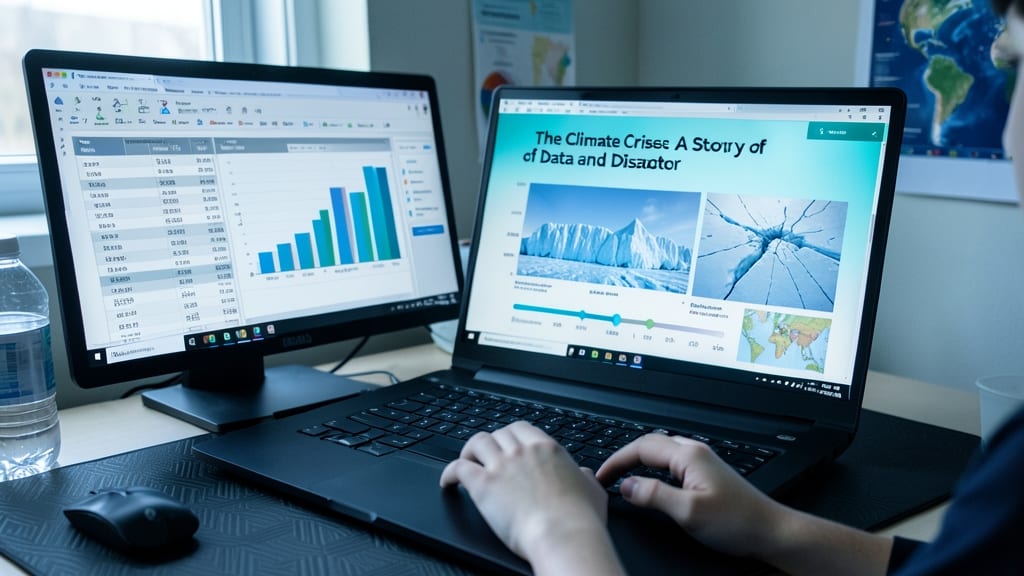
Struggling to keep track of college application deadlines while juggling extracurriculars? A Personalized College Application Timeline in Excel transforms chaos into clarity—all while building skills colleges love. This project goes beyond basic spreadsheets by integrating conditional formatting, data validation, and automated reminders to highlight critical dates.
Start with a master deadline tracker using Excel’s conditional formatting to flag overdue tasks in red. Add a GPA calculator with weighted averages for honors/AP classes, then embed a scholarship application dashboard that sorts opportunities by deadline and requirements. Use data validation dropdowns to standardize responses (e.g., "Submitted," "In Progress") and link cells to auto-populate status updates. For extra polish, insert a progress bar chart that visualizes completion percentages.
This project is ideal for juniors/seniors applying to multiple schools or those in college prep courses. It’s also a great addition to college applications—demonstrating initiative, tech proficiency, and the ability to manage complex tasks. 💻
Digital Yearbook Using Publisher and Word
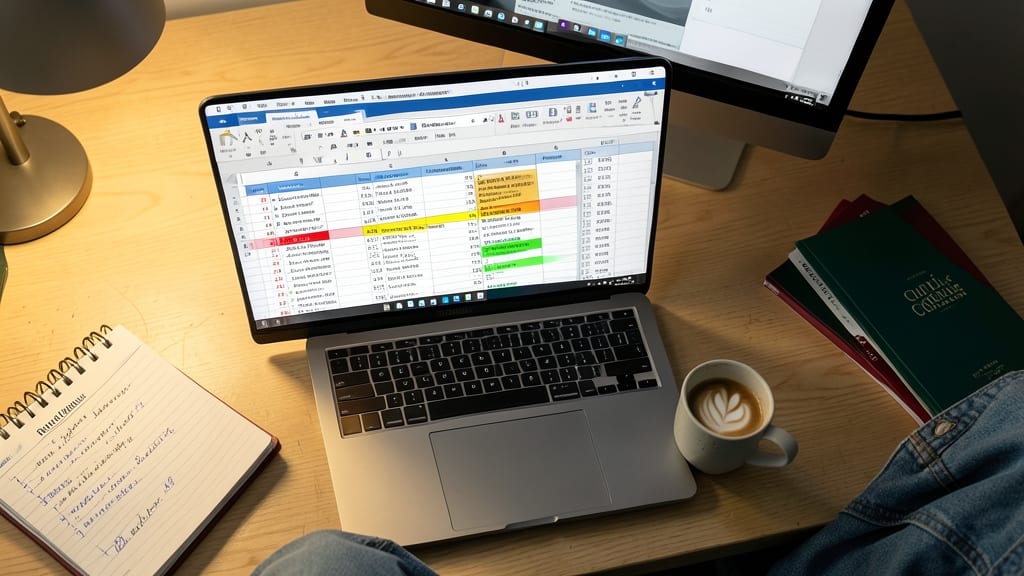
Want to turn your school memories into a digital yearbook that looks like a pro designer created it? Microsoft Publisher and Word work together to make this project both fun and functional, blending layout design with content management.
Start with Publisher’s drag-and-drop templates to design eye-catching spreads, then import student photos, quotes, and articles from Word for easy editing. Use Word’s built-in styles to keep text consistent, and add interactive elements like hyperlinked tables of contents. The best part? You can export it as a PDF or share it digitally—no printing required!
This project is perfect for students in journalism, graphic design, or yearbook clubs who want to showcase creativity while learning real-world publishing skills. 💻
Budgeting Spreadsheet for Student Life
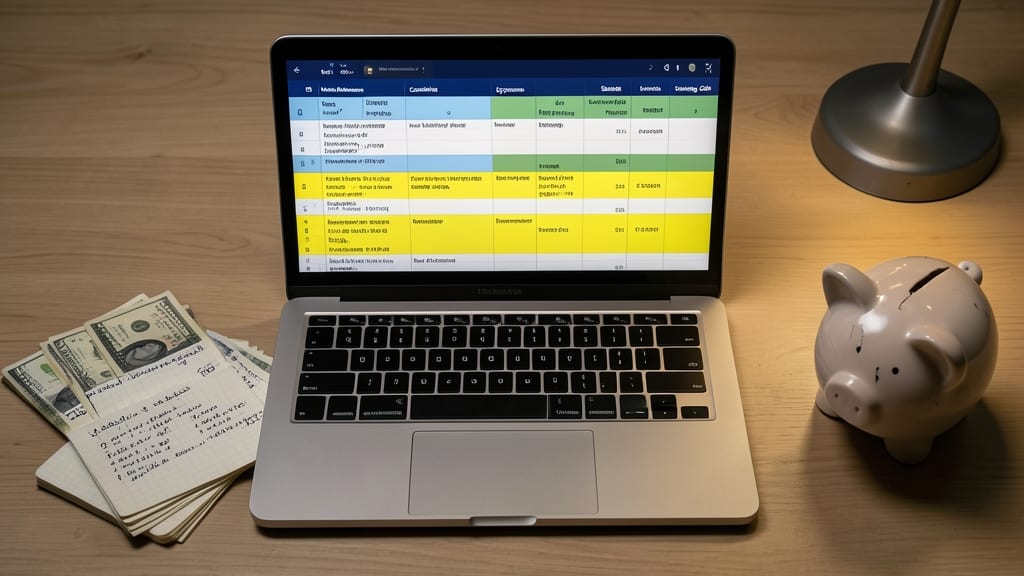
Want to turn spreadsheet skills into real-world financial smarts? This Budgeting Spreadsheet for Student Life project teaches you how to manage money like a pro—without needing a finance degree. It’s designed to track monthly allowances, categorize expenses, and even project savings goals using simple yet powerful Excel formulas.
The template includes color-coded expense categories (food, entertainment, transportation) with automatic pie charts to visualize spending habits. You’ll learn to use conditional formatting to highlight overspending and data validation to ensure accurate entries. Bonus: Add a savings progress bar to stay motivated! Perfect for personal finance classes or students who want to impress internship applications.
This project isn’t just about numbers—it’s about building lifelong skills. Whether you’re saving for college or just learning to budget your first paycheck, this spreadsheet makes financial literacy tangible and achievable. 💡
Historical Event Infographic in PowerPoint

Turn dry history assignments into eye-catching stories with PowerPoint’s SmartArt and design tools. This project transforms complex events like the American Revolution or World War II into visually engaging infographics that teachers will notice—and classmates will remember.
Start with SmartArt’s timeline or process diagrams to map key dates and relationships. Add icons, photos, and color-coded sections to highlight causes, turning dense text into digestible visuals. Use PowerPoint’s Morph transitions to animate connections between events for dynamic storytelling.
Perfect for history buffs or students who want to stand out with creativity—this project proves you can make learning and presenting history fun. ✨
Virtual Classroom Tour Using Sway
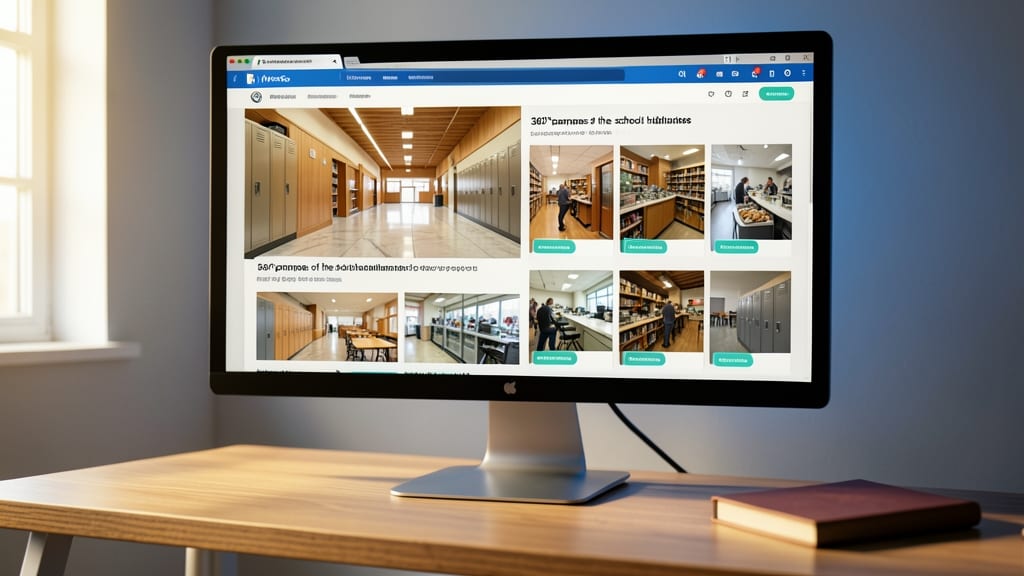
Want to make school feel like an adventure without leaving your desk? Microsoft Sway turns a simple classroom tour into an immersive, scrollable experience—perfect for students who love tech and storytelling.
Start by embedding 360° images of school spaces, adding interactive buttons for virtual "entrance" to classrooms, and layering text with auto-play animations for key features. The drag-and-drop design makes it easy to mix photos, videos, and maps, while responsive layouts ensure it looks great on phones or tablets. Teachers will love how it blends creativity with real-world tech skills.
Ideal for tech clubs, art projects, or college applications, this project lets you showcase digital design flair while keeping it simple. 💻
Book Report with Audio Narration in Word
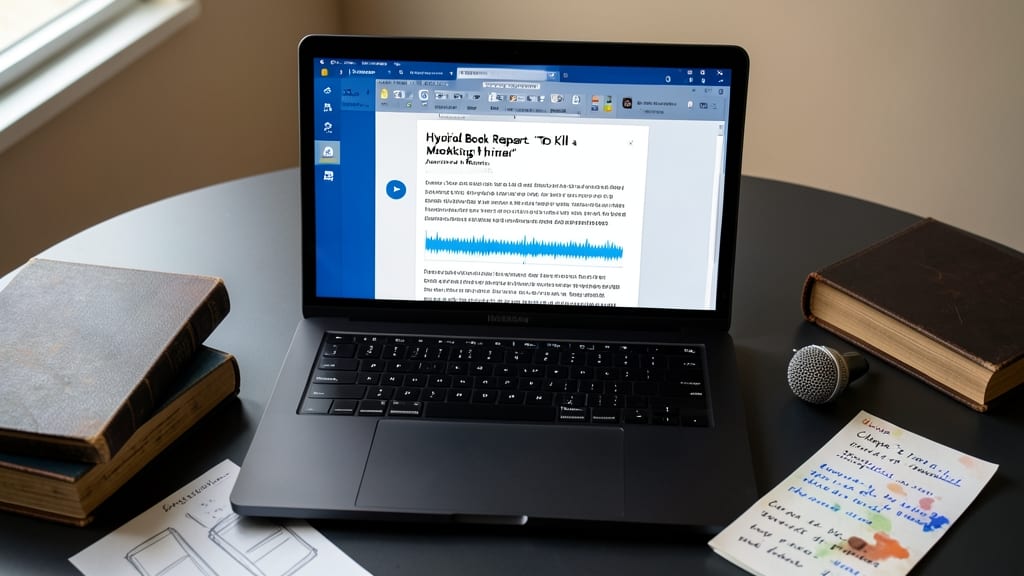
Tired of submitting the same old typed book reports? Elevate your English assignments with a Book Report with Audio Narration in Word, blending written analysis with your own recorded voice. This project transforms a standard assignment into an engaging multimedia experience that showcases both your literary analysis and presentation skills.
Start by writing your report as usual, then use Word’s Insert > Audio feature to record yourself discussing key themes, character insights, or personal reactions. Embed the audio directly into your document—no extra software needed—so teachers can hear your passion for the book. Add highlighted text for emphasis and book cover images to make it visually appealing. The result? A polished, professional submission that stands out in any teacher’s inbox.
This project is perfect for English students who want to demonstrate deeper engagement with their reading. It’s also a great way to practice public speaking and digital storytelling—skills that will serve you well in college and beyond. ✨
Sports Team Statistics Dashboard in Excel

Want to turn raw sports data into a dynamic, eye-catching dashboard? This Excel project lets you create a customizable sports statistics dashboard that tracks player performance, team rankings, and game trends—all in one sleek interface.
Start by collecting data like points per game, win-loss records, or shooting percentages, then use Excel’s pivot tables and conditional formatting to build interactive charts. Add a color-coded team comparison or a seasonal performance tracker to highlight trends. For extra flair, incorporate Sparkline graphs for quick visual insights—perfect for impressing coaches or teachers with your analytical skills.
Ideal for athletes analyzing their own stats or math students practicing real-world data visualization, this project blends sports passion with Excel mastery. ✨
Personal Resume and Cover Letter in Word
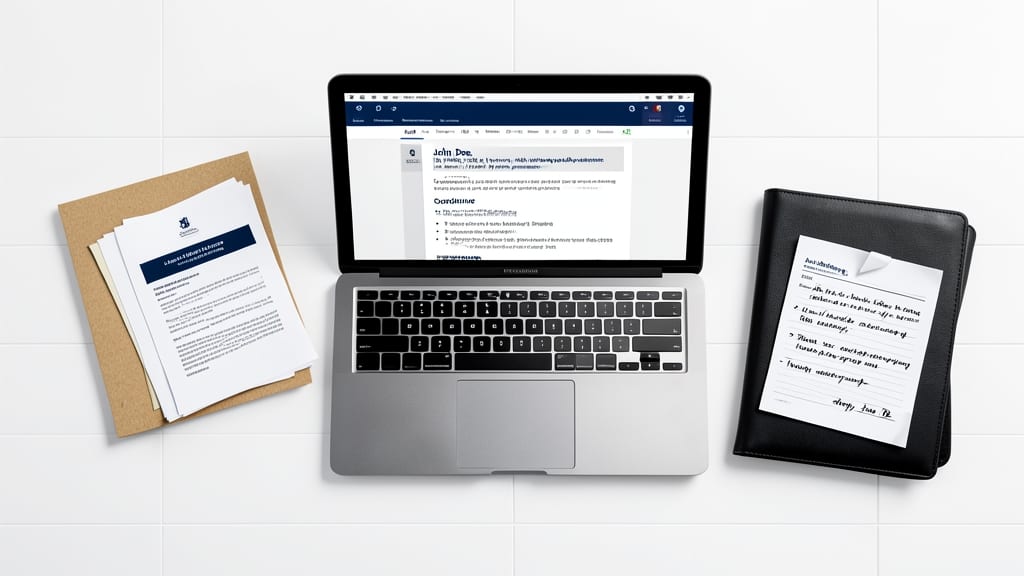
Ready to turn your part-time job applications or job shadowing opportunities into standout opportunities? A professionally designed resume and cover letter in Word isn’t just a checkbox—it’s your first impression, and Word’s built-in templates make it easier than ever to craft one that looks polished and intentional.
Start with Word’s modern resume templates, which include sleek layouts optimized for readability and professionalism. Use the cover letter wizard to tailor a compelling introduction for each application, matching fonts and colors between both documents for consistency. Add skills sections with icons (via Word’s built-in shapes or free online sources) to visually highlight strengths, and leverage the track changes feature to collaborate with teachers or mentors before finalizing.
This project is perfect for students applying for internships, volunteer roles, or even first jobs—it proves you can present yourself professionally while mastering Word’s advanced formatting tools. ✨
Interactive Quiz Game in PowerPoint
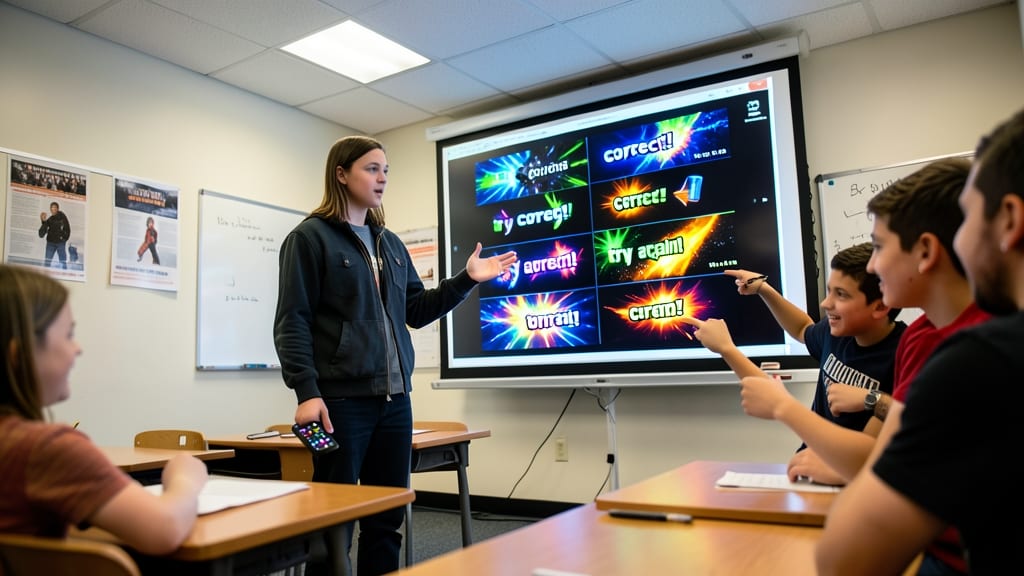
Turn study sessions into interactive fun with a PowerPoint quiz game that tests knowledge while keeping classmates engaged. Unlike static slides, this project uses slide transitions and triggers to create a dynamic, game-show-style experience—perfect for reviewing material in subjects like history, science, or even pop culture.
Start by designing slides with multiple-choice questions and hidden answer slides. Use triggers (like clicking a button) to reveal correct answers with animations or sound effects. Add a score tracker using shapes and text boxes to tally points automatically. The best part? No coding required—just PowerPoint’s built-in tools.
This project is ideal for tech clubs, study groups, or solo learners who want to reinforce lessons creatively. Teachers love it too, as it proves you can blend tech skills with education. ✨