
Tip & Trick
Microsoft Teams is the backbone of modern collaboration, but most users only scratch the surface of its capabilities. These 10 underutilized tips and tricks will transform your virtual meetings, streamline communication, and unlock productivity hacks that even power users don't know—perfect for 2023's remote and hybrid work landscape.
Customize Meeting Backgrounds with Blur Effects

Tired of awkward home office backgrounds distracting your colleagues—or worse, revealing too much? Microsoft Teams’ blur effects let you anonymize your space with a single click, keeping the focus on your professionalism.
Enable it by clicking the three-dot menu during a video call, then selecting "Apply background effects" and choosing "Blur." Adjust the intensity to balance privacy with natural lighting—perfect for noisy home offices or shared spaces. Pro tip: Use virtual backgrounds (like "Blurred" or "Outdoor") for extra polish when needed.
This trick is a game-changer for freelancers, hybrid workers, or anyone juggling calls from non-office spaces. Keep your workspace private while maintaining a polished, distraction-free appearance. ✨
Use Spotlight Mode for Focused Presentations
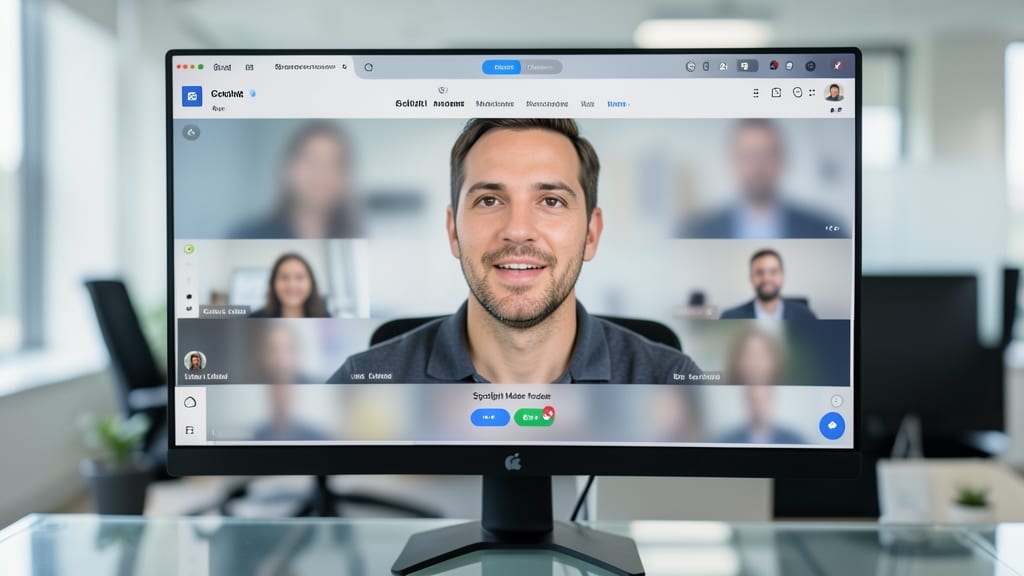
Tired of your audience getting distracted by side conversations or off-topic video tiles during presentations? Spotlight Mode in Microsoft Teams is your secret weapon—it blurs all participants except the active speaker, keeping everyone locked onto your content.
To enable it, simply click the three-dot menu in a meeting, select Spotlight, and choose Spotlight on speaker. This works seamlessly with PowerPoint Live, ensuring your slides stay crisp while the audience stays engaged. It’s especially useful for training sessions or large team meetings where multiple participants might appear on screen.
Trainers, executives, and remote leaders will love this feature—it transforms chaotic meetings into polished, distraction-free experiences. ✨
Enable Live Captions for Real-Time Transcription
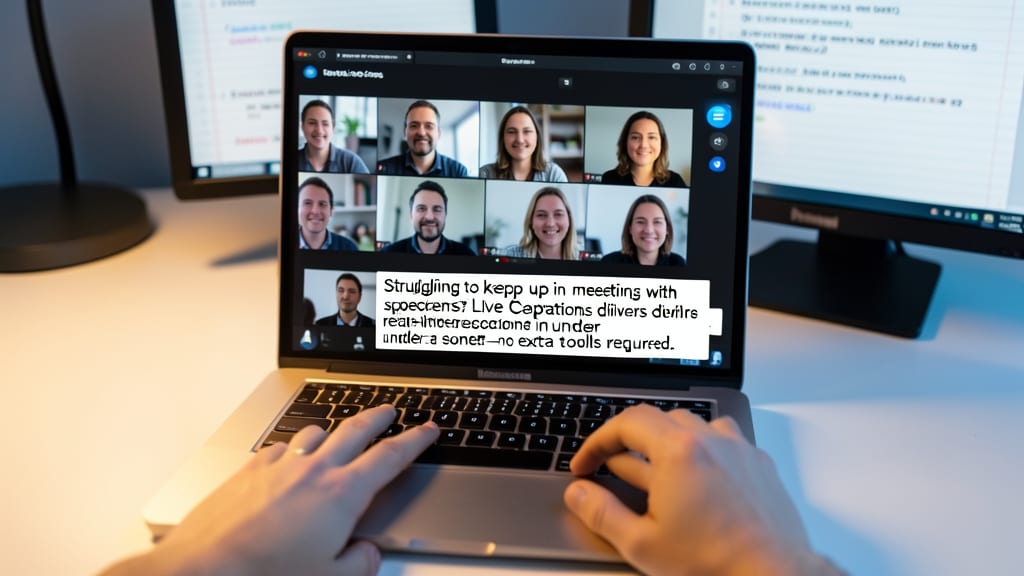
Struggling to keep up in meetings with non-native speakers or team members who rely on captions? Microsoft Teams’ Live Captions feature delivers real-time transcription, turning spoken words into text in under a second—no extra tools required.
To enable it, join a meeting, click the three-dot menu in the meeting controls, then select Turn on live captions. Choose your language (with 20+ options, including Spanish, French, and Japanese) and watch captions appear at the bottom of your screen. Works even if you’re not speaking—perfect for compliance-heavy industries where verbatim records matter.
This is a game-changer for global teams, HR training sessions, or any scenario where clarity trumps assumptions. No more asking, "What did they say?"—just read it in real time. 💡
Schedule Meetings Directly from Chat
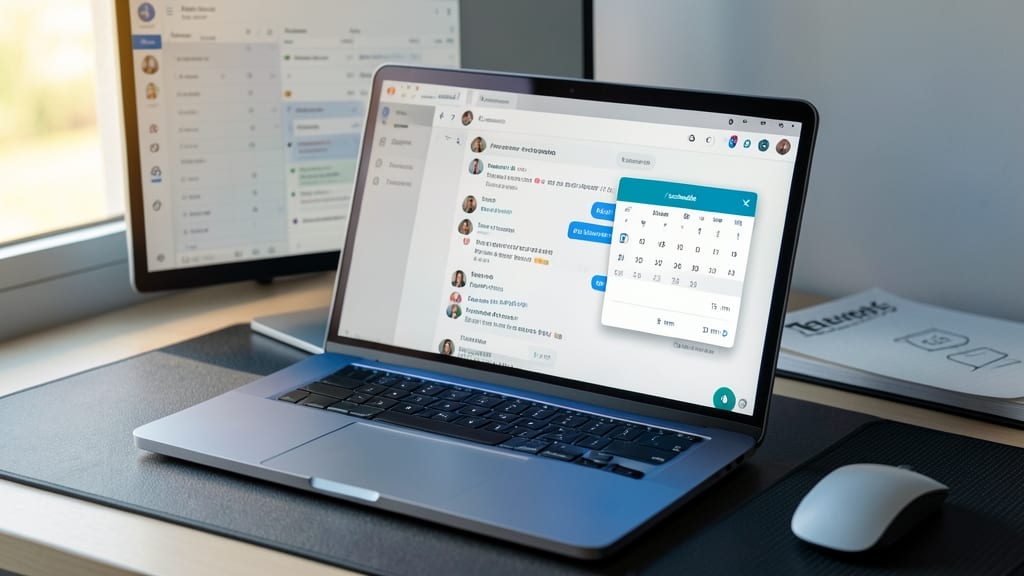
Endless back-and-forth emails to schedule quick meetings? Microsoft Teams’ in-chat scheduling feature lets you create invites directly from a conversation—no tab-switching required. Simply type /schedule in any chat, and a calendar popup appears with pre-filled details like the chat’s participants, saving you from manually adding names or dates.
The feature syncs with your Outlook calendar automatically, so conflicts are flagged instantly. You can even set recurring meetings or add agenda items before hitting send. For teams that thrive on spontaneity—like agile dev squads or marketing brainstorm sessions—this cuts scheduling time by 70% compared to traditional methods.
Perfect for managers, freelancers, or anyone who hates email chains—just drop the command, tweak the details, and let Teams handle the rest. ⚡
Use PowerPoint Live with Teams
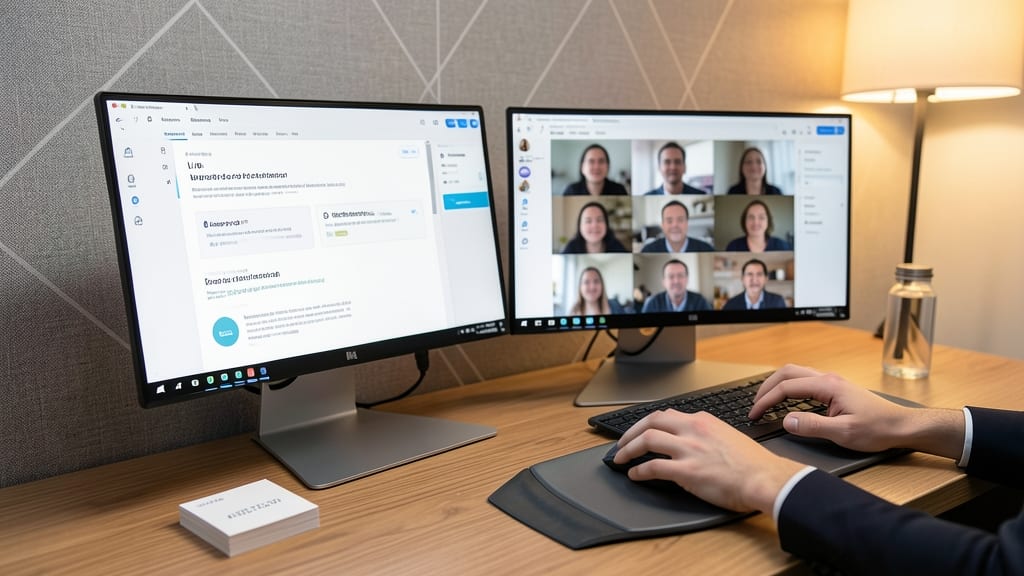
Struggling to keep your audience engaged during virtual presentations? PowerPoint Live in Microsoft Teams lets you share slides in real-time while controlling pacing—no more awkward pauses or lost connections. This feature syncs your deck automatically, so everyone sees updates instantly, even if they join late.
To get started, open your PowerPoint file, click Slide Show, then select Present Online and choose Microsoft Teams. The presenter view shows your notes and next slide, while the audience sees a seamless, high-quality stream. Pro tip: Use the laser pointer tool to highlight key points without leaving the presentation—perfect for sales pitches or training sessions where clarity matters.
Sales teams, trainers, and executives will love this—it turns passive viewing into an interactive experience. Give your presentations the polish they deserve with zero setup hassle. 💡
Mute Participants Automatically with Noise Suppression
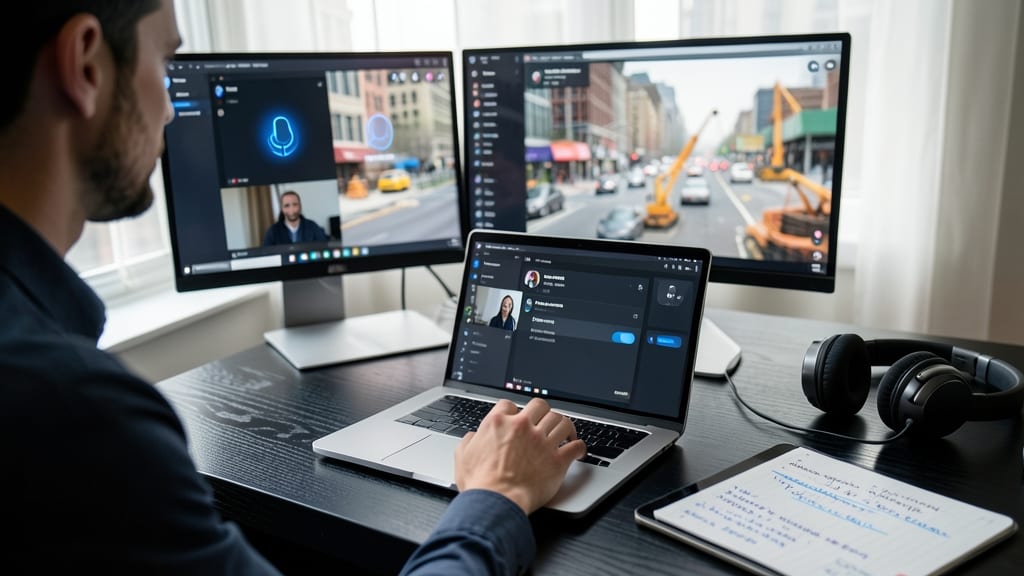
Frustrated by background chatter or construction noise derailing your meetings? Microsoft Teams’ built-in noise suppression tool automatically mutes disruptive audio—no manual intervention required.
Enable it by clicking the three-dot menu in a meeting, selecting \"Device settings\", then toggling \"Noise suppression\" (requires a USB headset or earbuds with a mic). The AI filters out dog barks, keyboard clacks, and office chatter while preserving speech clarity. For hybrid teams, this ensures remote participants sound as crisp as in-office colleagues.
Perfect for customer support teams, remote managers, or anyone hosting calls from shared spaces. Say goodbye to awkward interruptions—your meetings will run smoother than ever. 💪
Create Private Channels for Sensitive Discussions
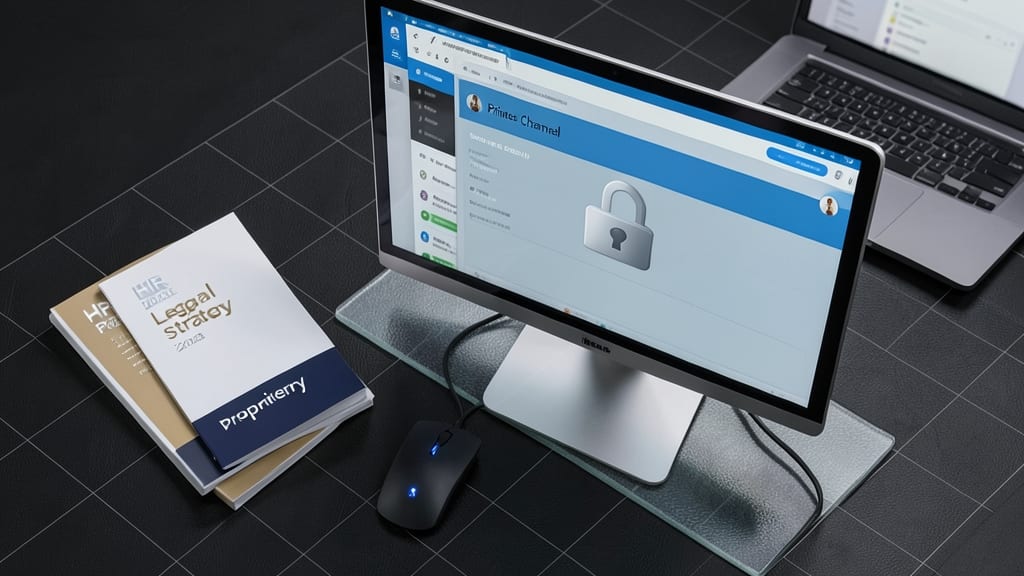
Not every team discussion belongs in a public chat—especially when sensitive topics like HR policies, legal strategy, or proprietary project details are on the table. Microsoft Teams’ private channels let you create secure spaces where only approved members can join, keeping conversations confidential by design.
To set one up, navigate to your team’s channel list, click the three-dot menu, and select “Add channel”. Toggle “Private” to restrict access, then manually add members from your team’s roster. Files shared here stay visible only to authorized users, and admins can’t accidentally stumble upon them. This is the digital equivalent of a locked door—ideal for compliance teams, legal departments, or project leads managing trade secrets.
Perfect for managers handling sensitive data or teams with strict confidentiality requirements, private channels turn Teams into a secure workspace without needing third-party tools. 💻
Use the 'Together Mode' for Immersive Team Meetings

Miss the energy of in-person brainstorming sessions? Microsoft Teams’ Together Mode recreates the feeling of sitting around a table by placing participants in a shared virtual workspace—no cubicles or awkward home office setups required.
Enable it during a meeting by clicking the three-dot menu and selecting Together Mode. The feature automatically arranges participants in a virtual office layout, complete with adjustable table views and customizable backgrounds (like a cozy café or sleek boardroom). It’s perfect for team-building sessions, creative workshops, or even casual check-ins where you want to mimic the organic flow of office conversations.
Remote teams, distributed agencies, and creative professionals will love this—it’s the closest you’ll get to watercooler chats without leaving your desk. 💡
Set Up Custom Status Messages with Emojis
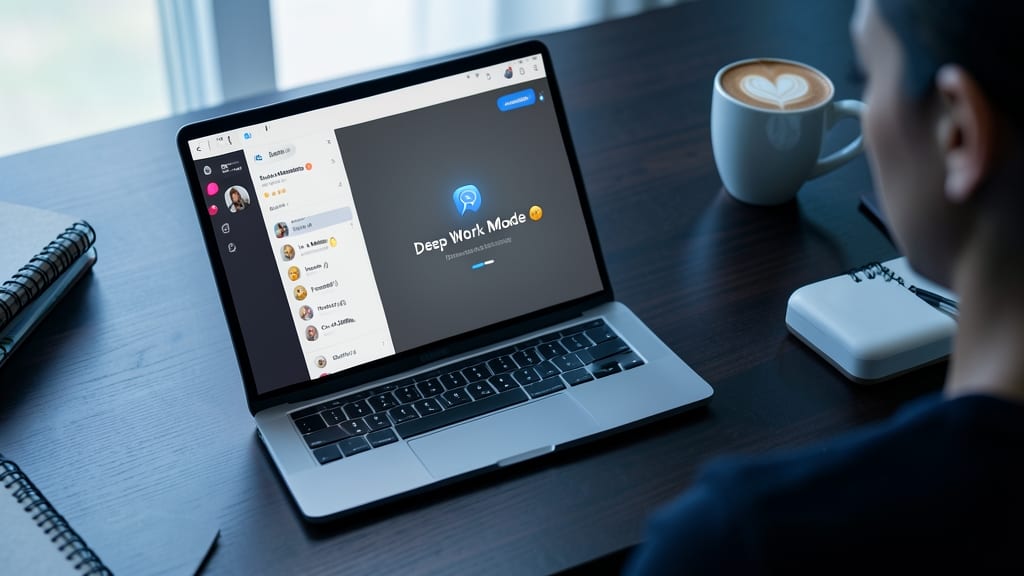
Ever missed a message because your status said "Available" when you were actually heads-down in a deep work session? Microsoft Teams’ custom status messages let you communicate your availability—and even your mood—with just a few clicks, using emojis for instant visual cues.
Set up your status by clicking your profile picture, then selecting "Edit status." Add a custom message like "Focus Mode 🚀" or "Out to Lunch 🍽️" (though we prefer tech-friendly emojis like 💻 or 🔧). Pro tip: Use "🌴 On Vacation" or "🚧 Project Deadline" to let colleagues know your availability without typing a full message. These statuses sync across all your devices, so your team always knows where you are—even across time zones.
This is a lifesaver for remote teams, freelancers managing multiple clients, or anyone juggling global collaboration. Set expectations upfront and reduce unnecessary interruptions. 💡
Integrate Teams with Power Automate for Workflows
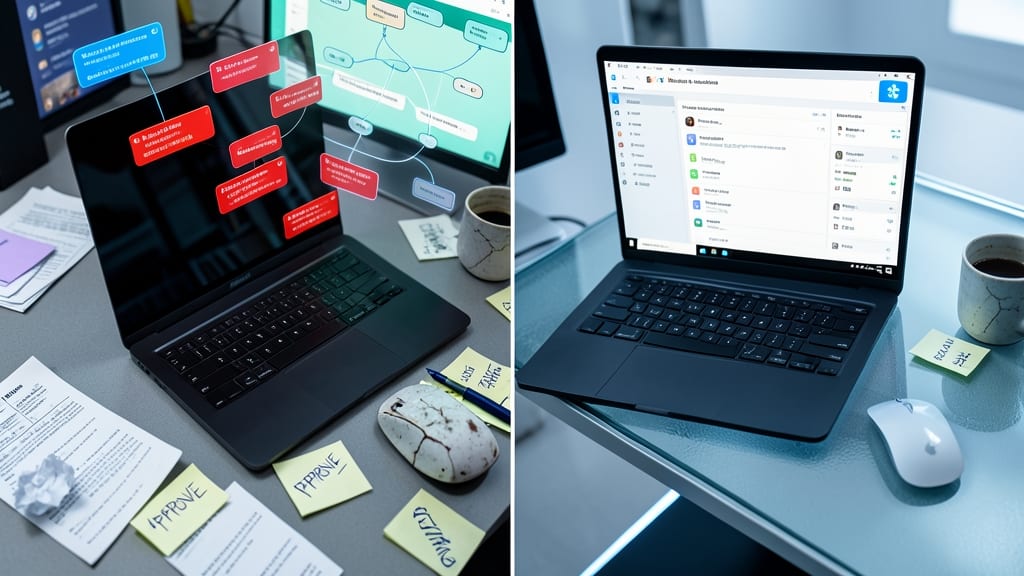
Drowning in repetitive approval requests or manual notifications that eat up your workday? Microsoft Teams + Power Automate is the dynamic duo you’ve been missing. This integration lets you automate workflows like sending approval requests, updating task statuses, or triggering notifications—all without lifting a finger.
Set up a zero-code workflow in minutes by connecting Teams to Power Automate via the Microsoft Flow template library. For example, auto-send a Teams message when a SharePoint task is completed, or push a notification to a channel when a new approval is pending. The pre-built connectors (like Outlook, SharePoint, and Power Apps) make it seamless for non-developers.
Project managers and IT teams handling high-volume workflows will love this—cut approval cycles by 70%+ and reclaim hours weekly. 💪