
Software
Mastering Microsoft Word 2010 starts with understanding its core components. This breakdown of the essential ribbon sections and toolbars will boost your productivity by helping you navigate the interface like a pro.
Home Tab for Basic Formatting
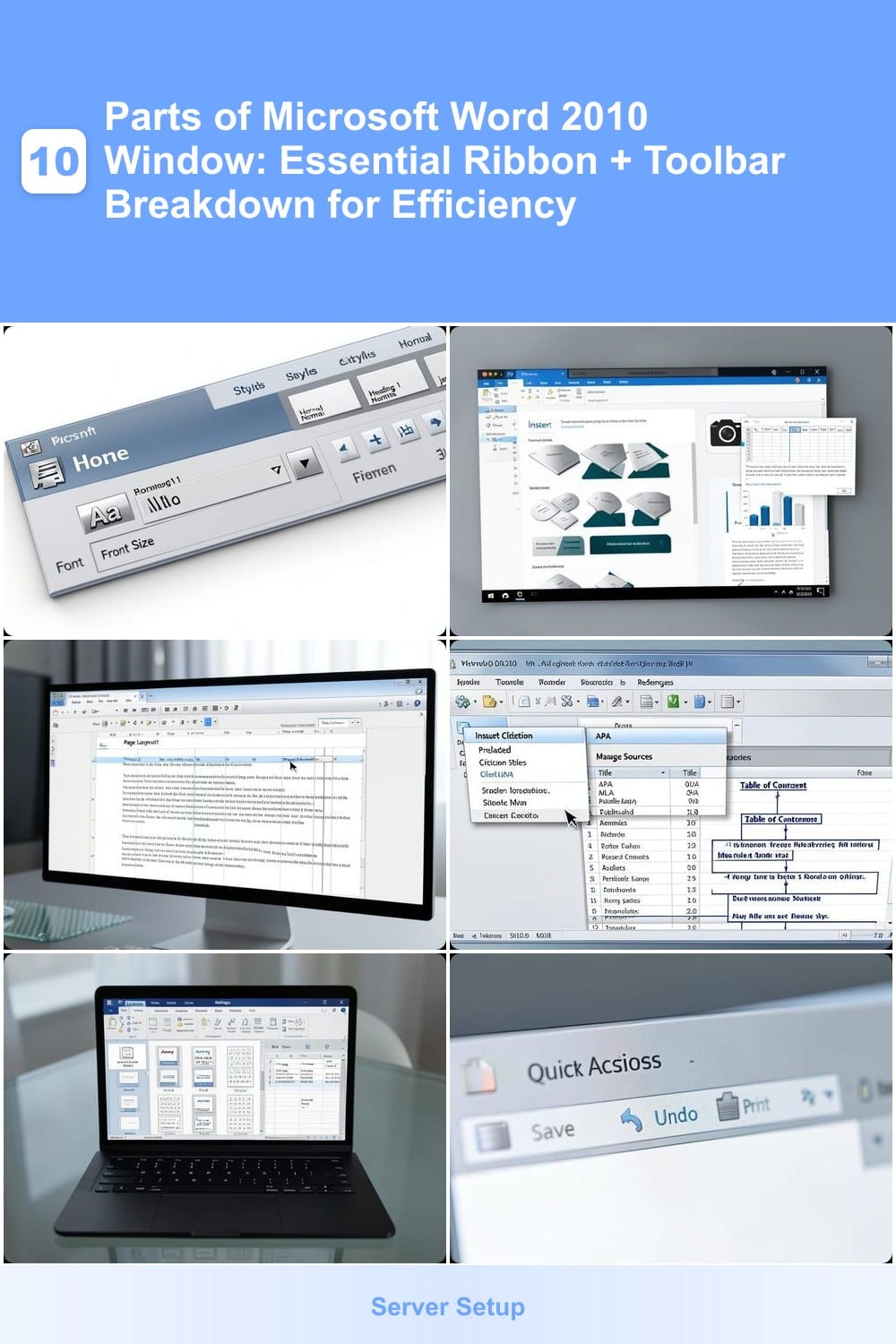
If you’re new to Microsoft Word 2010, the Home tab is your go-to for quick formatting without diving into hidden menus. It’s the first tab on the ribbon and packs all the essential tools for text styling, paragraph alignment, and style application—right where you need them.
The Home tab features groups like Font (for bold, italic, and underline), Paragraph (for alignment and indentation), and Styles (for pre-formatted templates like Heading 1 or Normal). You’ll also find the Clipboard group for copy/paste shortcuts and the Editing group for find/replace. These tools are designed for speed, letting you format text with just a few clicks—no extra steps required.
This tab is perfect for beginners or anyone who needs fast edits, like students formatting essays or professionals tweaking reports. It’s the first place to look when you want to adjust text appearance or structure without getting lost in deeper settings. ✨
Insert Tab for Media and Objects
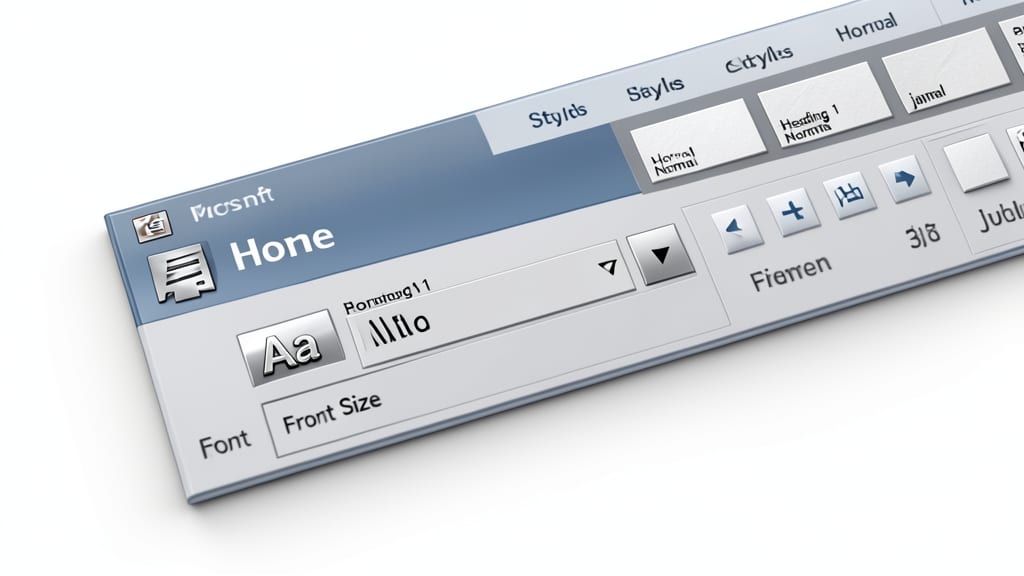
Transforming plain text into engaging visuals is where the Insert tab shines. This powerhouse tab lets you embed tables, images, charts, and headers with just a few clicks—no coding or external tools required.
From drag-and-drop tables (with customizable rows and columns) to smartart graphics (pre-built diagrams for presentations), the Insert tab handles it all. Need a header or footer? Done. Want to insert a screenshot or Excel chart? One-click solutions await. The quick parts gallery even stores reusable elements like signatures or logos for instant reuse.
Perfect for professionals crafting reports, students designing presentations, or businesses creating marketing materials, this tab turns your document from basic to polished and professional in seconds. ✨
Page Layout Tab for Document Design
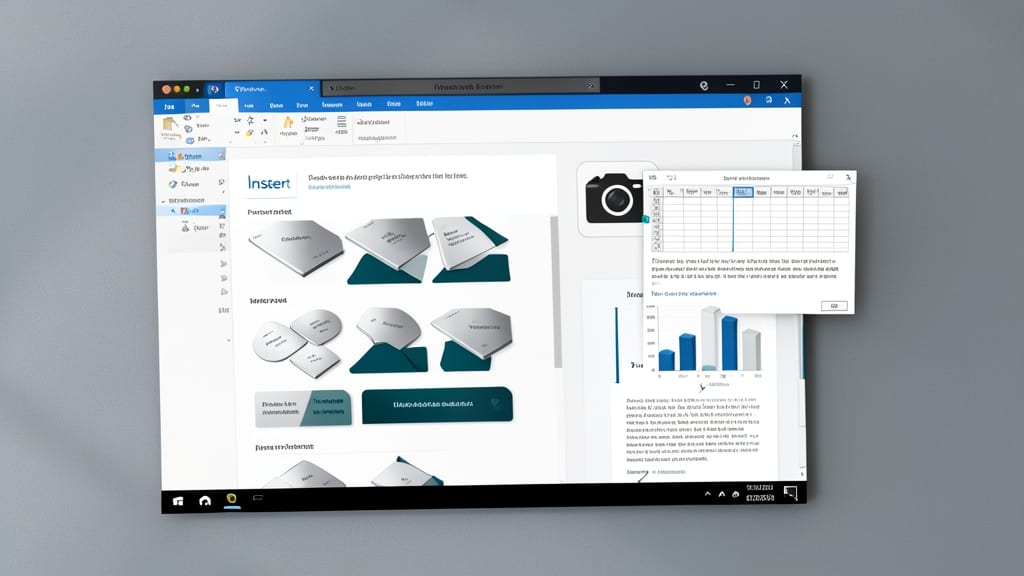
Struggling to align your document perfectly for printing or presentation? The Page Layout tab is your secret weapon for precise control over margins, orientation, and page breaks—ensuring your content looks polished and professional every time.
Here, you’ll find tools like margins (Normal, Wide, Narrow), orientation (Portrait/Landscape), and columns (for multi-column layouts), all designed to fine-tune your document’s physical appearance. The Page Breaks feature also lets you dictate where new pages start, preventing awkward splits in the middle of paragraphs or tables.
This tab is a must for designers, educators, and anyone creating print-ready documents like resumes, reports, or brochures. ⚡
References Tab for Citations and Footnotes
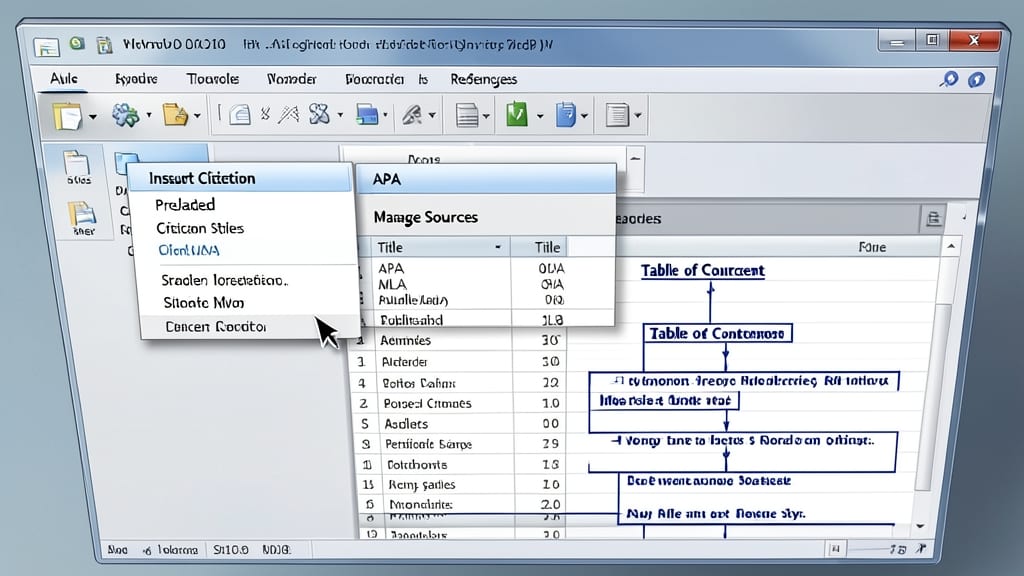
Tired of manually tracking sources or formatting footnotes in academic papers? The References tab in Word 2010 is your secret weapon for automating citations, generating tables of contents, and managing cross-references with minimal effort.
This tab offers built-in citation styles (APA, MLA, Chicago) and a Bibliography Builder to import references from databases like IEEE or PubMed. The Insert Citation tool lets you add sources directly into your text, while Table of Contents and Index features auto-update as you edit. For legal or technical documents, the Footnotes and Endnotes tools ensure proper formatting and numbering.
Perfect for students, researchers, and professionals drafting long-form documents, this tab eliminates the guesswork in formatting. No more formatting headaches—just focus on your content. ✨
Mailings Tab for Envelopes and Labels
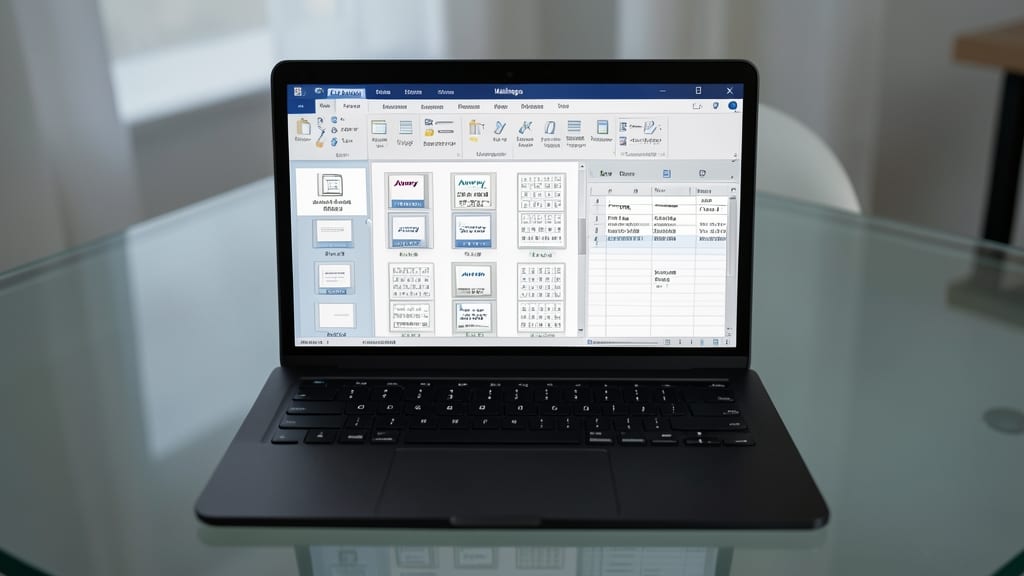
Need to send out invitations or bulk mailings without the hassle? The Mailings tab in Word 2010 is your secret weapon for creating envelopes and labels with ease.
This tab offers predefined envelope templates and label formats (like Avery), plus tools to merge addresses from Excel or other sources. The address block feature lets you format recipient details perfectly, while the print options ensure crisp, professional results every time. No more manual typing or messy handwriting!
Perfect for small businesses sending invoices, event organizers mailing invites, or anyone managing bulk correspondence. Save time and avoid errors with automated formatting. ✨
Quick Access Toolbar for Custom Shortcuts
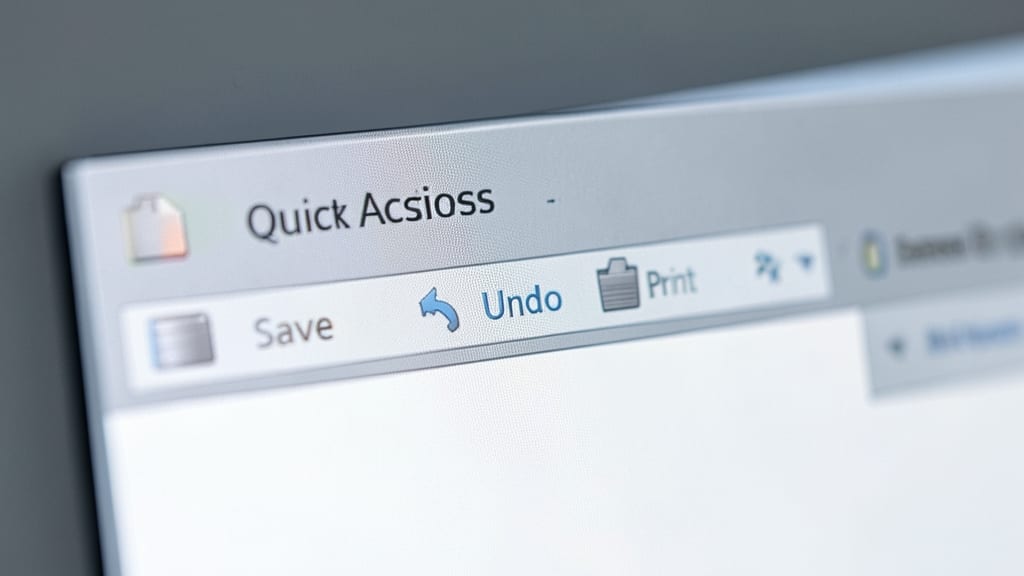
Tired of hunting through tabs for your most-used commands? The Quick Access Toolbar in Microsoft Word 2010 solves this by letting you pin essential tools—like Save, Undo, or Print—right where you need them, always visible at the top-left corner of the window.
This toolbar is fully customizable: you can add frequently used commands from any ribbon tab, create macro shortcuts, or even include quick-style buttons for instant formatting. By default, it includes Save, Undo, and Redo, but you can expand it to include up to nine custom commands—perfect for power users who want to skip the ribbon entirely.
Ideal for professionals who work with large documents or repetitive tasks, this toolbar turns Word into a personalized powerhouse. Once set up, it’s one less click between you and your workflow. ✨
Status Bar for Document Navigation
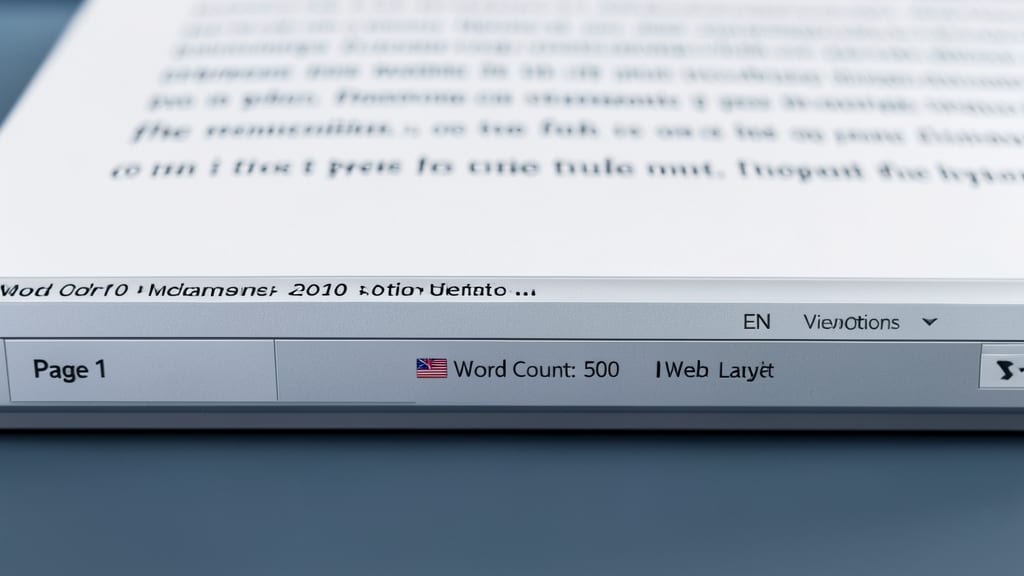
Forget getting lost in a sea of text—Word 2010’s Status Bar keeps you anchored with real-time document metrics at your fingertips. Tucked at the bottom of the window, it’s your silent productivity partner, displaying everything from page numbers and word counts to language settings and view options.
Click the tiny dropdown arrow to toggle between Print Layout, Draft, and Web Layout views instantly. Need to track progress? The word count updates dynamically as you type, while the page number helps you pinpoint where you are in long documents. Right-click to customize which tools appear—whether you prioritize zoom controls or spelling/grammar indicators.
This feature is a lifesaver for writers, editors, and professionals juggling multiple documents. Whether you’re drafting a thesis or a quick memo, the Status Bar ensures you’re always in control. ✨
Navigation Pane for Large Documents
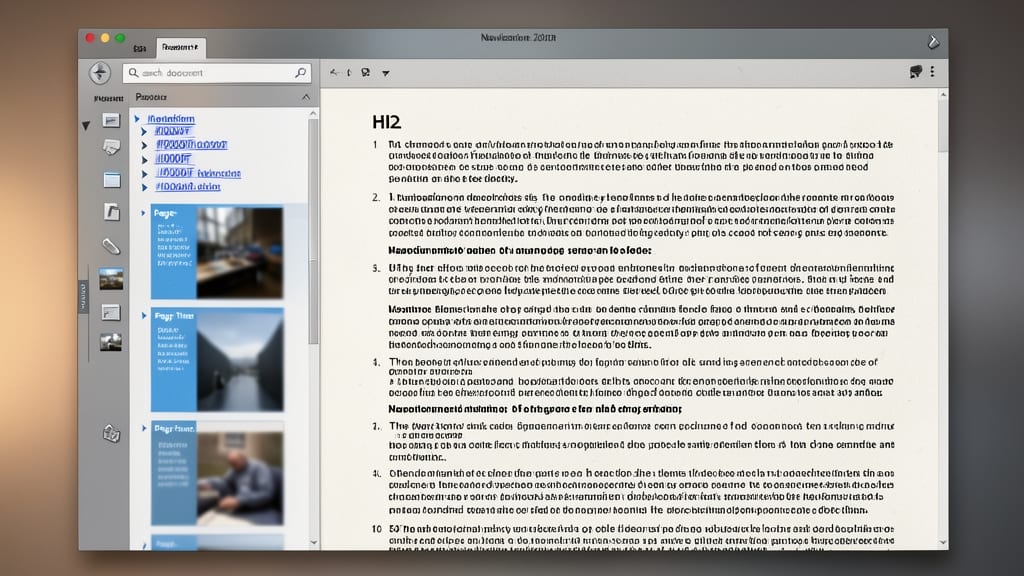
Struggling to find your way through a 50-page manual or detailed research report? The Navigation Pane in Word 2010 is your secret weapon for effortless document navigation.
Located on the left sidebar, this pane displays headings, pages, and results in a collapsible list. Click any heading to jump instantly, or browse page thumbnails to pinpoint exact locations—no more scrolling endlessly. It works best with structured documents (using heading styles) but also supports manual page jumps.
Ideal for technical writers, lawyers, and students, this tool turns chaotic documents into organized, clickable roadmaps. ⚡
View Tab for Document Display Options
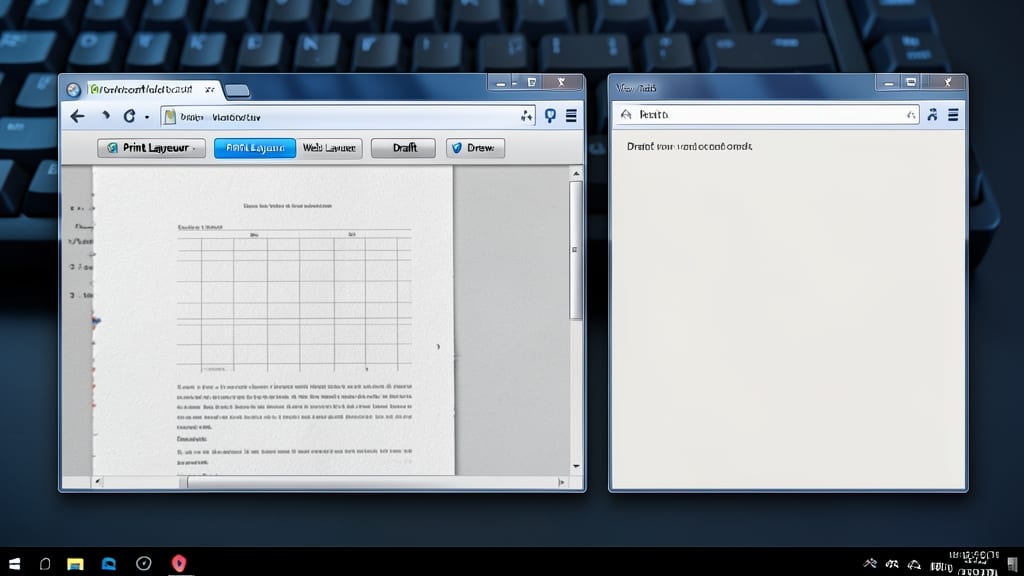
Need to toggle between a polished print-ready layout and a distraction-free draft? The View Tab in Word 2010 lets you switch between Print Layout, Web Layout, and Draft views with a single click—no extra tools required.
Print Layout shows your document exactly as it’ll print, complete with margins and headers. Web Layout mimics a webpage, ideal for reviewing how content flows online. Draft view strips away formatting for pure text focus, perfect for editing long documents. You can also toggle Gridlines or Ruler visibility to suit your workflow.
This tab is a lifesaver for proofreaders, designers, and anyone juggling multiple document formats. Switch views instantly to catch formatting errors or assess readability. ✨
Office Button for File Management
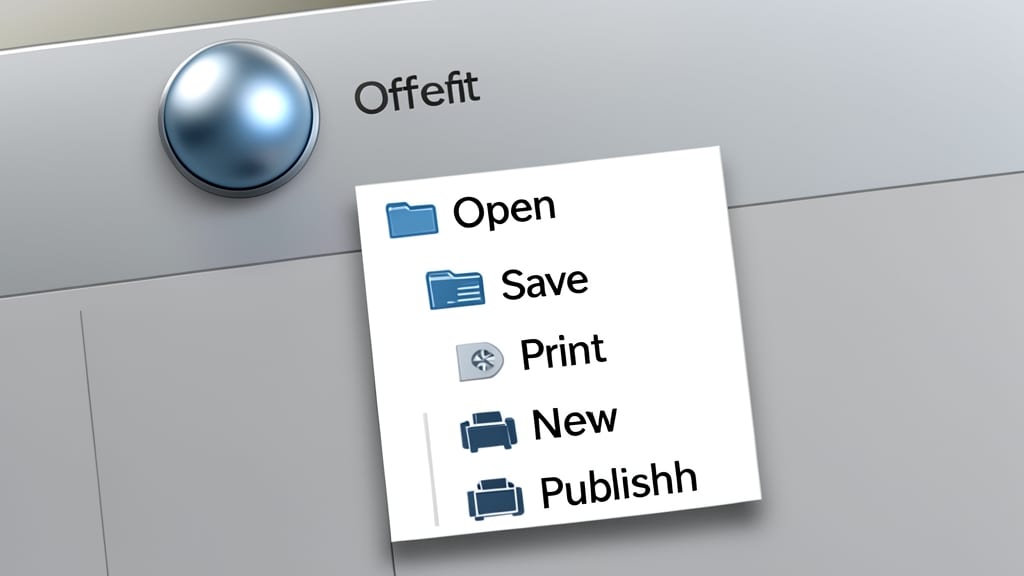
Tired of digging through menus to save or print your document? The Office Button in Word 2010 acts as your one-stop shop for all file management tasks, replacing the old File menu with a sleek, centralized hub.
With just one click, access Open, Save, and Print options, along with New, Share, and Publish tools—all neatly organized in a dropdown menu. The Backstage View (accessed via the Office Button) also lets you manage document properties, inspect compatibility, and even add a digital signature for professional touch-ups.
Perfect for busy professionals or students juggling multiple documents, this feature cuts down on navigation time and keeps your workflow smooth. ⚡