
Coding

Struggling with messy text data in Excel? These 10 powerful text functions will transform raw data into clean, professional formats with minimal effort. Learn how to extract, modify, and analyze text like an Excel expert.
Concatenate Function for Combining Text Strings

Tired of manually typing "Customer_" before every ID in your reports? The CONCATENATE function lets you merge text from multiple cells—or add static text—to dynamic data with just one formula. Whether you're combining first/last names, creating product labels, or generating email addresses, this function saves hours of repetitive work.
Use the syntax =CONCATENATE(text1, [text2], ...) to join up to 255 text items (cells, static text, or numbers converted to text). For example, to merge first names (A2) and last names (B2) with a space: =CONCATENATE(A2, " ", B2). Need a delimiter like a hyphen? Wrap it in quotes: =CONCATENATE(A2, "-", B2). In newer Excel versions, CONCAT (shorter syntax) does the same thing.
Perfect for small business owners formatting invoices, marketers building email lists, or anyone cleaning up split data. Master this, and you’ll spend less time copying-pasting and more time analyzing your data. ⚡
Text Function to Convert Numbers to Text
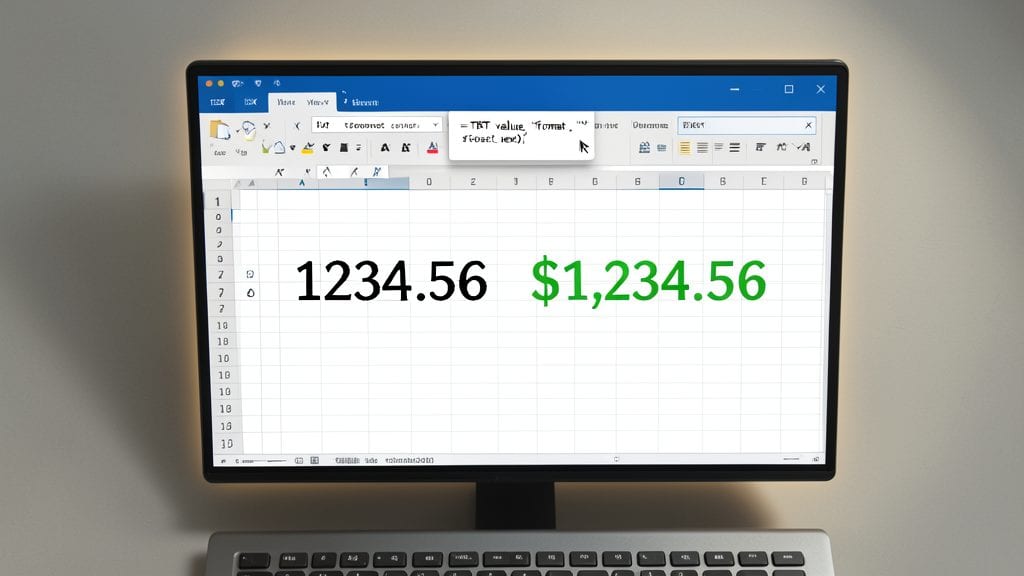
Need to turn raw numbers into polished text—like converting 1234.56 into "$1,234.56" for invoices or reports? Excel’s TEXT function is your secret weapon for formatting numeric data into readable text strings.
The formula uses syntax like =TEXT(value, "formattext"), where "formattext" defines the output style. For currency, use "$#,##0.00"; for dates, try "mm/dd/yyyy". It’s perfect for financial spreadsheets or when you need to perform text-based operations (like sorting or searching) on numeric values.
Accountants, analysts, and anyone working with financial data will love this function—it saves time and ensures consistency in reports. ⚡
Left Right and Mid Functions for Text Extraction

Need to pull specific parts from messy text strings—like extracting product codes, email prefixes, or partial names? Excel’s LEFT, RIGHT, and MID functions are your precision scalpel for text extraction.
Use LEFT(A1,5) to grab the first 5 characters (e.g., "ABC12" from "ABC12345"), RIGHT(A1,3) to snag the last 3 (e.g., "345"), and MID(A1,4,2) to extract characters 4–5 (e.g., "12"). These handle dynamic ranges—perfect for parsing serial numbers, ZIP codes, or even social security prefixes.
Accountants splitting transaction IDs, marketers segmenting email lists, or analysts cleaning datasets will find these indispensable for zero-config parsing. ✨
Trim Function for Cleaning Extra Spaces

When CSV files or web-scraped data arrive with random extra spaces, the TRIM function becomes your lifesaver. Unlike LEFT/RIGHT/MID, it handles all three types of spaces—leading, trailing, and multiple spaces between words—in a single step.
The syntax is simple: =TRIM(text), where "text" is your messy cell reference. For example, =TRIM(A2) instantly converts " john doe " into "john doe". It even fixes issues like "Hello World" (three spaces) to "Hello World". The function works in all modern Excel versions, including Excel 365 and 2019.
This is the go-to tool for data analysts, marketers, and anyone importing external datasets. Just apply it to your messy columns, and watch your reports look professional instantly. ⚡
Proper Function for Text Capitalization

Tired of inconsistent capitalization ruining your reports? The PROPER function instantly fixes this by capitalizing the first letter of every word while converting the rest to lowercase—no manual editing required.
With just =PROPER(A1), you can transform messy entries like "jOhN dOe" into "John Doe" in seconds. This function works seamlessly with dynamic ranges and is perfect for standardizing names in customer databases or client lists. It even handles abbreviations like "McDonald" correctly, converting them to "McDonald" instead of "Mcdonald."
Ideal for HR professionals, sales teams, or anyone managing lists where consistency matters. Give your data a polished look with zero effort! ✨
Substitute Function for Text Replacement

Tired of hunting through spreadsheets to fix inconsistent abbreviations or special characters? The SUBSTITUTE function is your secret weapon for instantly cleaning up messy text data without manual edits.
With just four simple arguments—text, oldtext, newtext, and an optional instance number—you can replace every occurrence of "Inc." with "Incorporated", swap "&" for "and", or even remove unwanted symbols like "$" or "#". The function even lets you target specific instances (e.g., replace only the first "x" in a cell) for precise control. For example, =SUBSTITUTE(A1, "Inc.", "Incorporated") transforms "Tech Inc." into "Tech Incorporated" in a flash.
This is a must-know for anyone working with imported data, customer lists, or financial reports where abbreviations or formatting errors slow you down. Try it next time you’re stuck fixing inconsistent text—your future self will thank you! ⚡
Find Function to Locate Text Positions

Tired of manually scanning cells for specific text patterns? The FIND function pinpoints the exact position of any substring within a cell, letting you validate data or extract substrings with surgical precision.
With syntax like =FIND("text", cellreference, [startnum]), you can locate email domains in addresses, validate phone number formats, or extract product codes from longer descriptions. Unlike LEFT/RIGHT/MID, which require knowing the exact position, FIND dynamically calculates it—perfect for inconsistent data. The optional start_num argument even lets you search from specific positions.
This function shines when validating structured data like emails (e.g., =FIND("@", A1)) or extracting dynamic segments from unformatted text. Ideal for auditors, data analysts, or anyone wrestling with messy imports. ✨
Len Function for Counting Characters
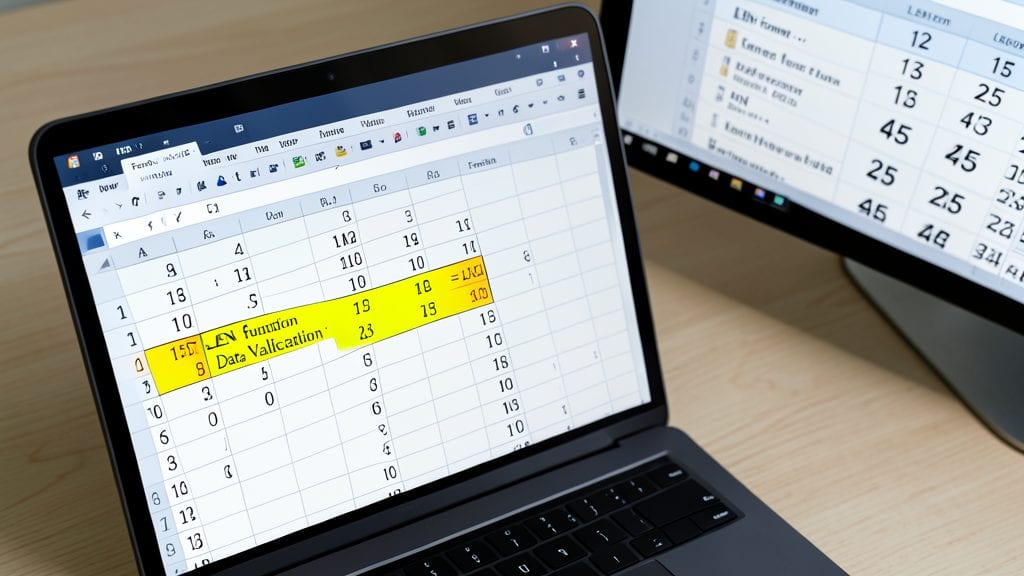
Need to enforce text length limits or validate data entries? The LEN function in Excel counts every character in a cell—including spaces—making it perfect for dynamic data checks. Unlike other functions that modify text, LEN simply returns a number, giving you precise control over character-based rules.
Use =LEN(A1) to count characters in cell A1, or nest it in IF statements to enforce limits (e.g., =IF(LEN(A1)>50,"Too Long","OK")). It’s ideal for checking passwords, product codes, or survey responses where length matters. Works seamlessly with other functions like LEFT or RIGHT for advanced parsing.
Marketers validating survey responses or developers cleaning up API data will find this function indispensable. Pair it with conditional formatting for instant visual feedback on character limits. ✨
Upper and Lower Functions for Case Conversion
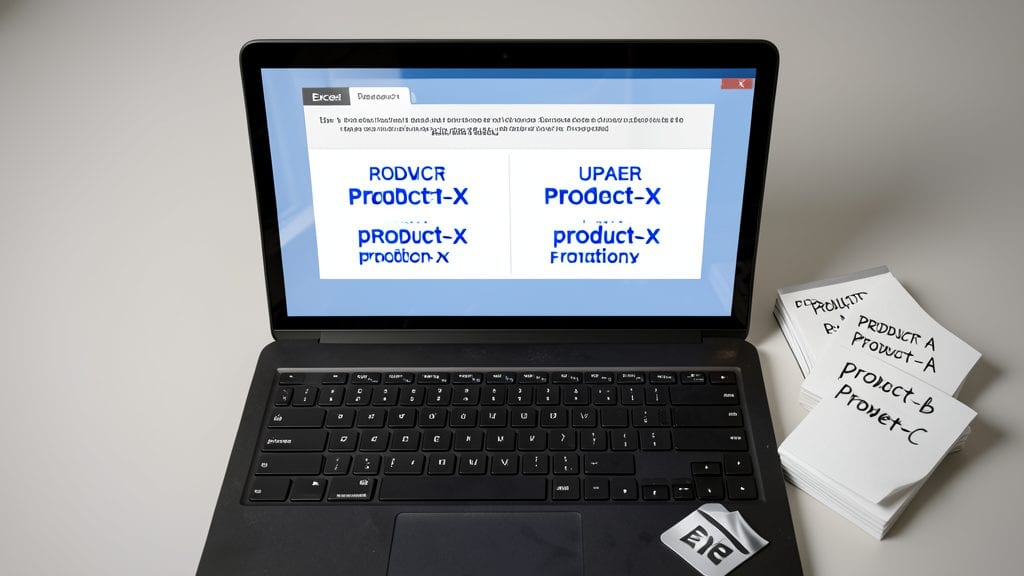
Tired of inconsistent text cases ruining your data consistency? The UPPER and LOWER functions in Excel are your secret weapons for enforcing uniformity in seconds.
Use =UPPER(text) to convert any text to all caps—ideal for standardizing product codes (e.g., "PRODUCT-X" instead of "product-x") or sorting lists alphabetically. The =LOWER(text) function does the opposite, forcing lowercase for database entries or API responses that require uniformity. Both functions ignore numbers and special characters, making them perfect for preparing text for comparisons or validation rules.
Small business owners standardizing invoices or developers cleaning up API data will find these functions indispensable. Just remember: UPPER for consistency, LOWER for flexibility. ✨
Clean Function for Removing Non-Printable Characters

Ever pasted text from a website or imported a dataset only to find your Excel cells filled with invisible formatting quirks? The CLEAN function is your secret weapon for stripping out those pesky non-printable characters that wreak havoc on alignment, formulas, and readability.
This function targets ASCII characters 0-31 (like zero-width spaces, line breaks, or control codes) that often sneak in from web sources or legacy files. Simply type =CLEAN(A1) in your target cell, and it will scrub the text clean—no extra spaces, no hidden symbols, just pure text. It’s especially handy when merging datasets or preparing text for further processing with other functions like TRIM or SUBSTITUTE.
Data analysts and anyone working with imported files will appreciate how CLEAN saves time by eliminating formatting headaches upfront. Try it next time you paste messy text into Excel! ✨