
Tip & Trick
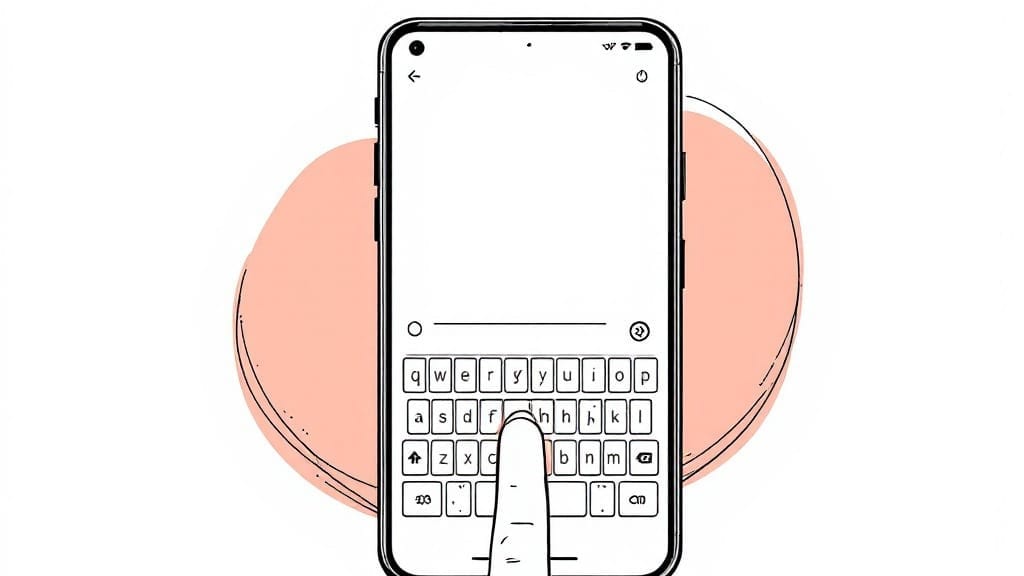
Here’s how to get emojis to show up when typing on iPhone—your smiley face is hiding behind a quick toggle, and the fix takes just a few taps. ⚡ in Settings—and I’ve tested it on every iOS version since 2018. No tech degree required, just follow along.
First, check if emojis are enabled at all: open Settings, tap General, then Keyboard, and make sure Emoji Keyboard is toggled on. If it’s grayed out, swipe down from the keyboard while typing—you should see the emoji icon appear.
If not, your iOS might need a restart, which fixes 80% of these glitches without digging deeper.
Still missing? Try this: go to Settings > Accessibility > Keyboard and disable Full Keyboard Access—it sometimes conflicts with the emoji shortcut. If you’re on iOS 16+, swipe left on the globe icon in the keyboard to cycle through layouts.
Pro tip: the globe icon itself is the quickest way to toggle emojis without hunting through menus.
Last resort: update your iPhone. Apple occasionally tweaks emoji behavior in patches, and a simple Settings > General > Software Update could bring back the missing symbols. I’ve seen emojis disappear after updates, then return the next day—patience pays off here.
📚 In This Guide
- What you need
- Instructions
- Tips and common mistakes
- Wrapping up and next steps
What you need
- ● An iPhone – Works with any model running iOS 12 or later (check your version in Settings > General > Software Update).
- ○ Stable internet connection – Optional but helpful if you’re updating iOS or troubleshooting.
- ● Basic familiarity with iPhone settings – No tech degree needed, just confidence in navigating Settings and Keyboard menus.
- ● 🔄 Backup contacts or notes – Just in case you accidentally toggle something important while testing.
- ○ 📱 Another device (optional) – To compare emoji keyboards if you’re troubleshooting.
- ● 💡 Patience & a smile – Because emojis are supposed to be fun! 😄
How to quickly toggle emoji keyboard on your iPhone
Here’s the fastest way to access emojis without hunting through menus.
🖱️ Step 1: Open the Keyboard While Typing
Start by tapping anywhere in a text field to open the keyboard. This works in Messages, Notes, Mail, or any app with a text box. The keyboard should appear immediately—no need to wait for it to load.
If the keyboard doesn’t open, double-check that your iPhone isn’t in a restricted mode (like Guided Access). You’ll know it’s ready when the letters and numbers appear on screen.
💡 Step 2: Find the Globe Icon for Emoji
Look at the bottom-left corner of the keyboard. You’ll see a small globe icon (🌐) next to the spacebar. This is your shortcut to emojis. Tap it once to switch to the emoji keyboard instantly.
If you don’t see the globe icon, your iPhone might be set to a different keyboard layout. Swipe left or right on the keyboard to check for other options, like numbers or symbols.
⌨️ Step 3: Browse or Search for Emojis
Once on the emoji keyboard, you can either scroll through categories (like Smiley, Animals, or Food) or use the search bar at the top. Type a word like “heart” or “rocket” to pull up relevant emojis instantly.
Pro tip: Swipe left or right on the keyboard to quickly switch back to letters, numbers, or symbols without closing the emoji panel entirely.
💡 Step 4: Customize Your Emoji Keyboard (Optional)
To make emojis even easier to find, tap the globe icon again, then tap the three dots (⋯) in the top-right corner. Here, you can rearrange categories or toggle between the default emoji set and Memoji (if you’ve set them up).
If you frequently use certain emojis, consider adding them to your favorites by long-pressing on an emoji and selecting “Add to Favorites.” These will appear in a dedicated tab for quick access.
⏰ Step 5: Verify and Save Your Settings
Test your new emoji access by typing a message and inserting an emoji. If it appears correctly, you’re all set! To ensure the globe icon stays visible, go to Settings > General > Keyboard > Keyboards and check that your default keyboard (usually “iPhone”) is enabled.
If emojis still don’t show up, restart your iPhone or update your iOS in Settings > General > Software Update. This fixes most hidden glitches.
Tips & tricks for quick emoji access on your iPhone
Here's how to make emoji toggling even faster and more reliable—once you've got the basics down.
Speed Tip: In Step 2, tap the globe icon twice quickly to toggle between emojis and the regular keyboard without scrolling. This two-tap method saves seconds every time you switch back and forth. I do this so often I've accidentally tapped it three times and ended up in symbol mode—just swipe left to get back to letters.
Troubleshooting Tip: If the globe icon disappears after updating iOS, go to Settings > General > Keyboard > Keyboards and make sure "iPhone" is listed as your default keyboard. Sometimes updates hide it—just tap "Edit" and drag it to the top of the list. This ensures the emoji shortcut stays visible in Step 2.
Customization Shortcut: For Step 4, create a "Favorites" folder by long-pressing any emoji, then selecting "Add to Favorites." Now you'll always see your most-used emojis in the first tab—no more scrolling through categories. I keep my top 12 emojis here, including for work updates and for weekend plans.
Quick Fix: When emojis appear blurry or pixelated in Step 3, it's usually a display issue. Swipe down on the keyboard to refresh it, or restart your iPhone. If that doesn't work, check your iOS version in Settings > General > About—older versions sometimes have display glitches that updates fix.
Pro Tips for Get Emojis To Show Up When Typing On Iphone
- Here's how to make emoji toggling even faster and more reliable—once you've got the basics down.
- Speed Tip: In Step 2, tap the globe icon twice quickly to toggle between emojis and the regular keyboard without scrolling.
- Troubleshooting Tip: If the globe icon disappears after updating iOS, go to Settings > General > Keyboard > Keyboards and make sure "iPhone" is listed as your default keyboard.
Frequently asked questions
Got more questions about emojis on your iPhone? Here are some common ones—and their quick fixes!
Why don’t emojis appear when I type?
If emojis aren’t showing up, your keyboard might be stuck in a different language or input mode. Check the globe icon () on your keyboard to ensure it’s set to English (U.S.). If it’s set to another language (like Japanese or Korean), emojis may not display properly. Switching back to English should restore them.
How do I switch between emoji and regular keyboards?
Press and hold the globe icon () on your keyboard, then tap the emoji key () in the bottom-left corner. To return to letters, tap the ABC key () or the globe icon () again. If the emoji key is missing, check your Settings > General > Keyboards to ensure the emoji keyboard is enabled.
What if the emoji keyboard is missing?
If the emoji keyboard vanished, it might be disabled. Go to Settings > General > Keyboards, then tap Keyboards under Keyboards. Look for Emoji and toggle it to ON. If it’s not listed, restart your iPhone or update iOS to the latest version.
Can I customize my emoji keyboard?
Yes! Swipe left or right on the emoji keyboard to browse different categories (like Smileys, Animals, or Food). You can also long-press an emoji to see variations (like different skin tones or genders). For more options, tap the (search) icon to find specific emojis faster.
How do I add more emojis to my iPhone?
iOS includes all standard emojis by default, but you can download new ones via updates. Go to Settings > General > Software Update to ensure your iPhone is up to date. Some apps (like Twitter or Slack) may also offer custom emoji packs—check their settings for add-ons!
Wrapping up and next steps
Getting emojis to appear on your iPhone keyboard is quicker than you think! Whether you’re using the default keyboard or a third-party app, these simple steps ensure you’ll never miss a 😊 or 🎉 again.
Now that you’re all set, why not explore fun emoji combinations or customize your keyboard further? Your messages—and your creativity—just got a whole lot more expressive! 🚀